

If you’ve ever stared at an Excel sheet wondering why your formulas aren’t working — even though everything looks right — chances are, hidden spaces are the culprit. These invisible troublemakers sneak in through copy-paste, imported data, or manual entry, breaking matches, VLOOKUPs, and filters.
Fortunately, Excel has a precise solution: the TRIM function. It quickly removes unwanted spaces, ensuring clean, reliable data.
🚀 What is the TRIM Function in Excel?
The TRIM function is a simple, powerful formula that removes all extra spaces from text — leaving only single spaces between words. It strips out:
- Multiple spaces in the middle (reducing them to one)
- Leading spaces (at the start)
- Trailing spaces (at the end)
=TRIM(text)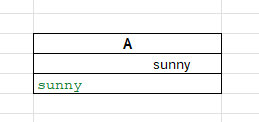
text is the cell or string you want to clean.
❗ Important: TRIM only removes extra spaces. It won’t remove non-breaking spaces (often found in copied web content) or formatting characters—more on that below.
🧩 Real-Life Scenario: Sales Report Frustration
Let’s say you manage customer orders. You export data from your CRM into Excel. When you try to VLOOKUP customer names, nothing matches.
You double-click a cell and see this: " John Smith ". Those extra spaces are why your formulas fail.
💡 How to Use TRIM in Excel (Step-by-Step)
Let’s say your problematic name is in cell A2.
You would write:
=TRIM(A2)This will:
- Remove leading spaces
- Remove trailing spaces
- Replace multiple internal spaces with a single space
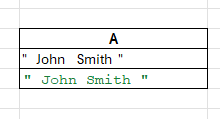
Before: ” John Smith “
After: “John Smith”
Boom. Problem solved.
🧠 Why TRIM is Essential for Data Cleaning
TRIM is foundational in Excel data cleaning tasks. You should always consider using TRIM when:
- Importing data from external sources (CRM, web, CSV)
- Prepping data for lookups, merges, or conditional formatting
- Cleaning up survey results, comments, or feedback text
It helps ensure data consistency — which means fewer formula errors, smoother automation, and cleaner reports.
🛠️ Combine TRIM with Other Functions
Want to go from “pretty clean” to “Excel genius”? Try nesting TRIM with other formulas.
✅ TRIM + UPPER/LOWER
Great for:
- Email addresses
- Name normalization
- Case-insensitive lookups
=UPPER(TRIM(A2))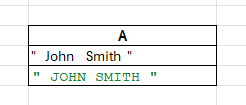
✅ TRIM + SUBSTITUTE (Remove non-breaking spaces)
Web copy sometimes includes non-breaking spaces (character code 160), which TRIM doesn’t remove. Use SUBSTITUTE to clean them:
=TRIM(SUBSTITUTE(A2,CHAR(160),""))Real-world use: You paste a list of product names from your supplier’s website, and the formatting is messy. This combo clears it right up.
🧮 Bonus: TRIM in Bulk with Paste Special
Don’t want to write formulas for hundreds of rows?
Here’s a quick hack:
- Insert a new column with =TRIM(A2) and drag down.
- Copy the cleaned column.
- Right-click → Paste Special → Values over the original column.
- Delete the helper column.
Now your original column is clean—no formulas needed!
🔍 Frequently Asked Questions
Q: Does TRIM work on numbers?
Technically, yes—but it doesn’t change the number itself. TRIM is intended for text, and it will remove invisible spaces from numeric strings that might look like numbers.
Q: Can I TRIM multiple columns at once?
Yes. You can use an array formula or write TRIM formulas for each column. If you’re in Excel 365, try wrapping TEXTJOIN with TRIM and SPLIT logic.
Q: Will TRIM remove tabs or line breaks?
No. TRIM only removes space characters (ASCII 32). Use CLEAN() or SUBSTITUTE() to remove tabs (CHAR(9)) or line breaks (CHAR(10)).
✅ Final Thoughts: Never Skip the TRIM
TRIM is one of those underrated Excel tricks that can save hours of confusion and prevent massive data issues. It’s simple, powerful, and once you get used to it, you’ll wonder how you ever lived without it.
Whether you’re preparing data for analysis, cleaning up imports, or building dashboards, always ask yourself:
“Should I TRIM this first?”
Nine times out of ten — yes, you should.
🔑 Key Takeaways (Copy This!)
- TRIM removes extra spaces in Excel (leading, trailing, and multiple between words).
- Perfect for cleaning CRM exports, survey data, manual inputs.
- Combine with UPPER, LOWER, SUBSTITUTE, and CLEAN for powerful data cleaning.
- Can be used inline with other formulas or to clean entire columns.
Conclusion
- The TRIM function in Excel is your first line of defense against invisible formatting issues that can quietly derail your data workflows. From broken lookups to mismatched entries and messy reports, extra spaces cause real problems — but with TRIM, cleaning them up becomes effortless. Whether you’re managing CRM exports, prepping survey results, or working with pasted web data, a quick =TRIM() formula can save hours of manual correction and frustration. If you’re pursuing excel professional training courses or aiming for the best advanced excel certification, mastering TRIM is a must.
- As you level up your skills through advanced excel and financial modeling or an advanced level excel training program, make TRIM part of your regular data-cleaning routine. Combine it with functions like SUBSTITUTE, UPPER, or CLEAN for even more powerful results, and don’t hesitate to use it in bulk with helper columns and paste special. The next time a formula fails unexpectedly, remember: it might not be wrong — it might just need a TRIM.
Summary
- If you’ve ever struggled with formulas not working in Excel, hidden spaces are often the culprit. These invisible errors sneak in from copy-paste, imports, or manual entry, breaking matches, VLOOKUPs, and filters. The TRIM function in Excel is your fix — it removes unwanted spaces and ensures clean, reliable data. For learners in excel professional training courses, those diving into advanced excel and financial modeling, or anyone pursuing advanced level excel training and the best advanced excel certification, mastering TRIM is a must-have skill.
- TRIM is simple yet powerful. Its formula
=TRIM(text)cleans text by removing leading, trailing, and extra internal spaces, while leaving single spaces intact. That means customer names, product titles, or survey responses look clean and behave correctly in lookups, filters, and conditional formatting. You’ll never have to wonder again why “John Smith” doesn’t match “ John Smith.” Pair TRIM with functions like LEN, UPPER/LOWER, SUBSTITUTE, or CLEAN for even more control. For example, TRIM + SUBSTITUTE clears non-breaking spaces from web content, while TRIM + UPPER ensures consistent formatting for emails and IDs.
- In real-world use, TRIM saves hours. Clean CRM exports, fix mismatched IDs, or tidy product lists instantly. Need bulk cleanup? Apply TRIM across a column, copy results, and use Paste Special → Values. It’s quick and efficient. Whether you’re working with student records, financial reports, or eCommerce data, the TRIM function in Excel helps eliminate frustrating errors. By making TRIM part of your data-cleaning routine, you ensure accuracy, prevent formula failures, and boost efficiency. For anyone serious about Excel — from financial modeling to advanced training — TRIM is a true game-changer. 🚀


Connect With Us
Follow us for updates on our latest courses and events!