

Struggling with untidy decimals in your spreadsheets? Whether you’re preparing financial reports, quoting prices, or working through sales forecasts, inaccurate or unrounded numbers can throw off your entire document. In today’s Excel Pro Series tutorial, we’ll show you how to clean up your data using the ROUND and ROUNDUP functions in Excel — fast, simple, and accurate. Perfect if you want to learn advanced Excel near me, build confidence across basic intermediate advanced Excel levels, or apply these skills in spreadsheet modelling in business analytics and everyday business analytics work.
Why Rounding in Excel Matters for Professionals
If you work in finance, sales, engineering, or data entry, precision is non-negotiable. Excel’s built-in rounding functions ensure that your numbers are not only mathematically correct but also presented in a professional, easy-to-read format. We’ll walk you through real-world business examples, so you can apply these skills instantly and avoid costly rounding mistakes.
What You’ll Learn in This Tutorial
This step-by-step guide to the ROUND and ROUNDUP functions in Excel covers how to use each rounding function with easy formulas, visual explanations, and clear comparisons between ROUND, ROUNDUP, and ROUNDDOWN. Whether you’re rounding to the nearest dollar or need full control over decimal places, you’ll gain the confidence to manage numeric data like a pro. It’s perfect for anyone who wants to learn advanced excel near me or progress through basic, intermediate, and advanced Excel levels, and it’s especially useful for spreadsheet modelling in business analytics and practical business analytics work.
🧠 What Are ROUND and ROUNDUP Functions in Excel?
Before we get technical, let’s simplify it.
🔹 =ROUND(number, num_digits)
Rounds a number to a specified number of decimal places.
🔹 =ROUNDUP(number, num_digits)
Always rounds the number up, away from zero — even if it would normally round down.
| Function | What It Does |
| ROUND | Rounds normally (up or down based on value) |
| ROUNDUP | Always rounds up, no matter what |
| ROUNDDOWN | Always rounds down, no matter what |
👩💼 Real-Life Example 1: Financial Report – Round to 2 Decimal Places
Let’s say you’re an accountant preparing a client invoice.
You’ve calculated a cell B2 with this formula:
=1000/3
That gives:
333.3333333
💥 Way too many decimals. You only want two decimal places (standard in currency).
Use:
=ROUND(B2, 2)
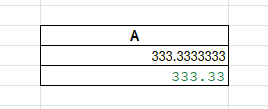
✅ Result: 333.33
Now it’s ready to print, send, or report.
📈 Real-Life Example 2: Always Round Up Shipping Weights
You’re running an e-commerce store and you charge shipping based on full kilos. Even if an item weighs 1.1kg, you want to charge for 2kg.
That’s where ROUNDUP() is your hero.
Let’s say weight is in C2:
=ROUNDUP(C2, 0)
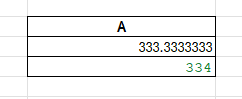
✅ Result: If C2 = 1.1, result = 2
✅ If C2 = 2.9, result = 3
This formula rounds up to the nearest whole number — perfect for pricing, logistics, and shipping logic.
🔍 ROUND Function Syntax and Breakdown
Let’s break down this command:
=ROUND(number, num_digits)
| Parameter | What it Means |
| number | The value or formula you want to round |
| num_digits | How many decimal places to keep |
Examples:
= ROUND(45.6789, 2) → 45.68
=ROUND(45.6789, 0) → 46
=ROUND(45.6789, -1) → 50 (round to nearest 10)
🔍 ROUNDUP Function Syntax and Breakdown
=ROUNDUP(number, num_digits)
Same format as ROUND, but always rounds up, away from zero.
Examples:
=ROUNDUP(3.14159, 2) → 3.15
=ROUNDUP(99.001, 0) → 100
=ROUNDUP(-4.2, 0) → -5 (moves further from zero)
🧠 Use when you always want the result a bit “higher” — for safety, pricing, or estimates.
📐 Real-Life Example 3: Engineering Tolerances
You’re a civil engineer preparing part dimensions.
Tolerance specs say “no smaller than 7.5mm”.
You have raw data from measurements in D2:
7.428
You must round up to the nearest 0.1mm.
Use:
=ROUNDUP(D2, 1)
✅ Result: 7.5
This protects against undersizing — and keeps things compliant.
📉 Real-Life Example 4: Commission Calculations
You manage a sales team and give commissions as:
=TotalSales * CommissionRate
But you only want to show whole dollars — no cents.
Say in E2 the result is:
=ROUND(E2, 0)
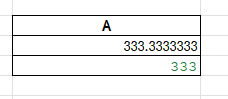
✅ If result is 768.75 → 769
✅ If result is 432.35 → 432
✅ Neat. Fair. Professional.
💥 ROUND vs ROUNDUP vs ROUNDDOWN
| Function | What It Does | Example Input | Result (1 Decimal) |
| ROUND() | Rounds up/down normally | 5.45 | 5.5 |
| ROUNDUP() | Always rounds up | 5.41 | 5.5 |
| ROUNDDOWN() | Always rounds down | 5.99 | 5.9 |
🧠 Bonus: How to Round to Nearest 5 or 10
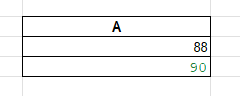
Need to round a number like 88 to the nearest 10?
Use this:
=ROUND(A2, -1)
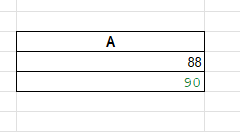
✅ 88 → 90
✅ 85 → 90
✅ 82 → 80
Want to round to the nearest 5?
=ROUND(A2/5,0)*5
✅ 88 → 90
✅ 86 → 85
✅ 84 → 85
🎓 Round Formulas Inside Larger Functions
Let’s say you’re calculating tax and want to round the result inside another formula:
=ROUND(A2*0.18, 2)
You can nest ROUND() anywhere to clean your outputs.
Great for:
- Financial models
- Dashboards
- Google Sheets exports
- Client-facing printouts
⚠️ Common Mistakes to Avoid
❌ Don’t confuse ROUNDUP() with CEILING() — they behave differently.
✅ ROUNDUP(2.1, 0) → 3
✅ CEILING(2.1, 1) → 3 (same)
BUT…
✅ CEILING(2.1, 5) → 5
✅ ROUNDUP(2.1, -1) → 10
📌 ROUNDUP rounds digits — CEILING rounds to multiples
📝 Summary – Round Like a Pro in Excel
Let’s recap what we’ve covered:
🔹 Use ROUND() to round normally based on the digit
🔹 Use ROUNDUP() to always go higher
🔹 You can round to:
- Whole numbers
- 2 decimal places (money)
- 0.1s (engineering)
- 10s or 100s (sales brackets)
🔹 You can nest ROUND() inside formulas for clean outputs
🔹 Combine rounding with IF(), TEXT(), CEILING(), or FLOOR() for power formulas
OUR BRANCHES
G-40, Nav Mangalam Complex, opp. Agersen Bhavan, City Light
G-48-B, J9 high street, Vesu Canal Rd, Vesu
115, Raj Victoria complex, Pal
Conclusion
Rounding isn’t just about aesthetics — it’s essential for clarity, accuracy, and professionalism in your spreadsheets. Whether you’re managing invoices, calculating commissions, quoting prices, or modeling engineering specs, Excel’s ROUND and ROUNDUP functions in Excel (along with ROUNDDOWN) give you full control over how numbers appear and behave. By mastering these simple formulas, you ensure your data is not only mathematically sound but also presentation-ready.
Remember: ROUND() follows the standard rules, ROUNDUP() ensures you always round higher, and ROUNDDOWN() keeps things conservative. With just a few keystrokes, you can eliminate messy decimals, simplify outputs, and boost the readability of your reports. Perfect for anyone who wants to learn advanced Excel near me, progress through basic intermediate advanced Excel, or apply rounding in spreadsheet modelling in business analytics and day-to-day business analytics work.
SUMMARY
✨ Master Precision with ROUND and ROUNDUP Functions in Excel ✨
Messy decimals ruining your reports? The ROUND and ROUNDUP functions in Excel are your secret weapons to clean, accurate, and professional data. Perfect if you’re searching to learn advanced Excel near me, or moving through basic intermediate advanced Excel levels.
📌 Why It Matters
- 📊 ROUND() → Rounds normally (up/down)
- 🚀 ROUNDUP() → Always rounds up, away from zero
- 🔒 Ensures clarity in financial reports, sales forecasts, and business analytics work
💡 Practical Examples
- 🧾 Invoices: ROUND(1000/3,2) → 333.33
- 📦 Shipping: ROUNDUP(1.1,0) → 2 (always round weight up)
- 🏗 Engineering: ROUNDUP(7.428,1) → 7.5 (tolerance safe)
- 💼 Commission: ROUND(E2,0) → whole dollars only
🔍 Where to Use
- ✅ Spreadsheet modelling in business analytics
- ✅ Client-facing reports & dashboards
- ✅ Everyday business analytics work
⚡ Pro Tip: Nest ROUND inside bigger formulas (like tax, pricing, or KPIs) to keep results sharp and presentation-ready.
💥 By mastering ROUND, ROUNDUP, and ROUNDDOWN, you’ll save time, eliminate confusion, and gain confidence in Excel — from everyday tasks to advanced business analytics work.

