
Unlock the Power of Pivot Tables to Analyze Big Data Effortlessly
Pivot Tables in Excel turn overwhelming datasets into clear, simple summaries with just a few clicks. Whether you’re exploring advanced Excel, practicing Excel and advance Excel skills, or preparing for advanced Excel training, mastering Pivot Tables will massively boost your efficiency.
Why Pivot Tables Are Essential for Business Analysts and Marketers
They let you slice, filter, and summarize large datasets without complex formulas, making them perfect for sales reports, HR dashboards, customer insights, and more. Pivot Tables help analysts and marketers work faster and uncover valuable trends effortlessly.
What You’ll Learn in This Comprehensive Pivot Table Guide
You’ll understand what Pivot Tables are, how to create them step-by-step, and how to use them in real-world scenarios. We’ll cover dynamic features, filtering options, and common mistakes to avoid — giving you the confidence to use Pivot Tables for powerful business insights.
What Is a Pivot Table in Excel?
Let’s simplify it:
A Pivot Table is a dynamic Excel tool that lets you summarize, group, and analyze large sets of data — instantly.
Instead of scrolling through thousands of rows, you can use a Pivot Table to answer questions like:
🧾 “How much did we sell per region?”
🧑💼 “How many employees joined each month?”
📦 “Which product had the most returns last quarter?”
📌 No formulas required. Just drag and drop.
How to Create a Pivot Table in Excel (Step-by-Step)
Step 1: Prepare Your Data
Make sure your data:
- Has headers in the first row (like “Date”, “Region”, “Sales”)
- Is arranged in a table format — no blank rows or merged cells
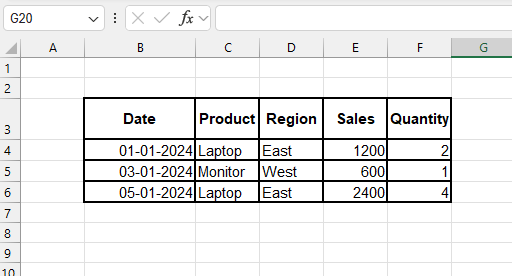
👉 Example dataset:
| Date | Product | Region | Sales | Quantity |
| 2024-01-01 | Laptop | East | 1200 | 2 |
| 2024-01-03 | Monitor | West | 600 | 1 |
| 2024-01-05 | Laptop | East | 2400 | 4 |
Step 2: Insert the Pivot Table
- Select any cell in your dataset
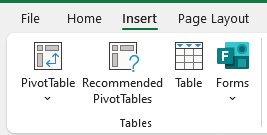
- Go to the Insert tab
- Click on PivotTable
- Choose to place the Pivot Table in a New Worksheet (recommended)
- Click OK
🎉 You’ll see a blank Pivot Table and a PivotTable Fields pane on the right.
Step 3: Build Your Pivot Table
Now, just drag and drop:
Drag “Sales” to Values
Drag “Region” to Rows
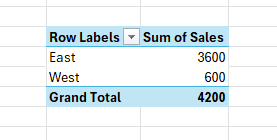
💥 Result:
A summary of total sales by region — no formulas needed!
You can also:
Drag “Quantity” to Values
Drag “Product” to Columns
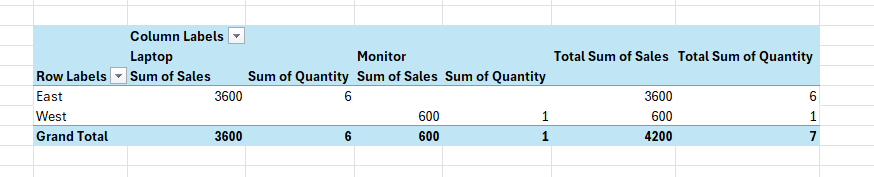
Now you’ve got a full matrix of product quantity by region.
Real-Life Example 1: Monthly Sales Report
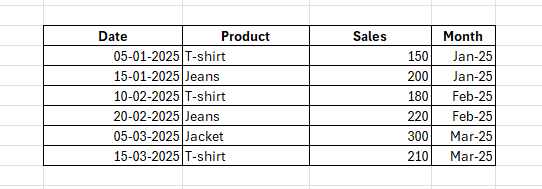
You work in retail, and you want to analyze
monthly sales by product.
Your dataset includes: Sales, Date, Product
Steps:
1. Add a new column: Month =TEXT(Date,”mmm-yyyy”)
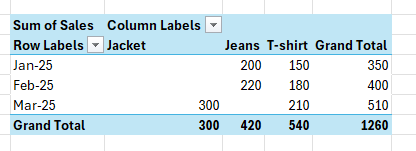
2. Insert a Pivot Table
3. Drag Month to Rows
4. Drag Product to Columns
5. Drag Sales to Values
Now you have an automated sales report by product and month.
Perfect for: Dashboards, Year-over-year tracking, Monthly management meetings
Real-Life Example 2: HR Attrition Summary
You manage customer support and need to report returns per product category.
Fields:
- Product
- Category
- Return Reason
- Return Date

Pivot Setup:
Rows: Category
Columns: Return Reason
Values: Count of Return Date
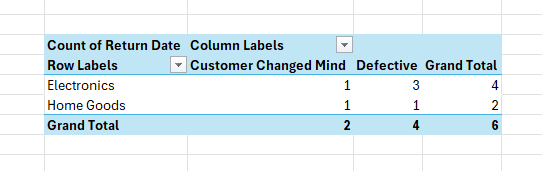
This helps you identify which products and reasons are driving returns.
Use filters to isolate timeframes or categories for in-depth insight.
Real-Life Example 3: Product Returns Analysis Real-Life
You’re in HR, and you need to track employee resignations by department.
Dataset fields:
- Name
- Department
- Exit Date
- Reason

Pivot Table Setup:
Rows: Department
Columns: Reason
Values: Count of Name
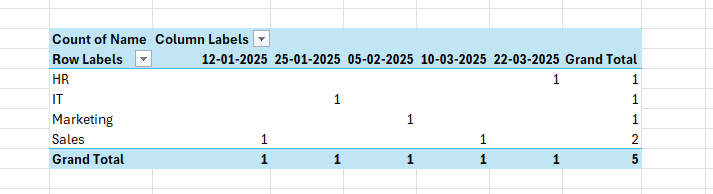
💥 You just built a department-wise attrition dashboard in seconds.
Great for:
- Workforce planning
- Internal reviews
- Trend analysis
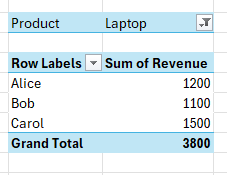
Real-Life Example 4: Revenue by Sales Rep with Filters
You manage a sales team and need to:
- Compare revenue by rep
- Filter by quarter or product

Pivot Table :
- Rows: Sales Rep
- Values: Sum of Revenue
- Filters: Quarter, Product
✅ Add slicers for even faster interaction.
✅ No need to recalculate anything — updates instantly.
Bonus: Use Pivot Table Calculations
percentages:
Right-click a value → Show Values As → % of Column Total
subtotals:
Enable/disable subtotals from the Pivot Table Design tab
custom calculated fields:
Pivot Table → Analyze → Fields, Items, & Sets → Calculated Field
Example: Profit = Sales – Cost
Real-Life Example 5: Customer Segmentation
Your marketing team wants to know:
“How many customers fall into each age group per region?”
Your dataset:
- Region
- Customer ID
- Age Group (18–25, 26–35, etc.)
✅ Pivot Setup:
- Rows: Age Group
- Columns: Region
- Values: Count of Customer ID
Now you’ve created a customer distribution matrix in seconds.
🎯 Perfect for:
- Campaign targeting
- Regional insights
- Ad budgeting
Expert Tip: Turn Your Data into a Table First
Before creating your Pivot Table:
- Select your raw data
- Press Ctrl + T to turn it into an Excel Table
✅ Benefits:
- Auto-expands with new data
- Pivot Table updates dynamically
- Cleaner referencing and formatting
Refresh Pivot Table Automatically
Before creating your Pivot Table:
- Select your raw data
- Press Ctrl + T to turn it into an Excel Table
✅ Benefits:
- Auto-expands with new data
- Pivot Table updates dynamically
- Cleaner referencing and formatting
Pivot Table vs Formulas – Why It’s Better
| Task | With Formulas | With Pivot Table |
| Group by categories | Manual SUMIFS() | Drag & drop ✅ |
| Add filters | Hard-coded logic | Instant filters ✅ |
| Create reports | Time-consuming | One click ✅ |
| Update with new data | Adjust ranges | Refresh ✅ |
🎯 Pivot Tables are faster, smarter, and easier to scale.
Common Mistakes with Pivot Tables (And How to Avoid Them)
❌ Mistake 1: Using data with blank headers
🛑 This causes field recognition issues.
✅ Always name your columns properly.
❌ Mistake 2: Forgetting to refresh the table
🛑 Your summary may not match your data
✅ Always refresh after updates
❌ Mistake 3: Too much in one Pivot Table
🛑 Your summary may not match your data
✅ Always refresh after updates
Summary – Mastering Pivot Tables in Excel
The Pivot Table in Excel is the ultimate tool to:
- Summarize large data sets
- Group, filter, sort instantly
- Perform calculations without formulas
- Build dashboards, reports, and analyses on the fly
✅ Key Benefits:
- Clean, visual summaries
- Refreshable and interactive
- No coding or formulas required
- Works with any industry or department
Conclusion
- Pivot Tables in Excel take the heavy lifting out of data analysis — turning thousands of confusing rows into sharp, insightful summaries with just a few clicks. mastering Pivot Tables means you can:
- Quickly uncover trends and patterns
- Build flexible reports that update with your data
- Analyze by any category or timeframe without complex formulas
- Create interactive dashboards that impress your team and stakeholders
- The best part? You don’t need to be a spreadsheet wizard to use them. With a little practice, Pivot Tables will become your go-to tool for turning raw data into powerful business intelligence.
- Ready to level up your Excel skills? Start playing with Pivot Tables today — your data will thank you!

