

When working in Excel, things don’t always go as planned. Formulas break, divisions by zero happen, and lookups return blanks. That’s why mastering IF and IFERROR functions is a game-changer. Using IF functions helps you apply logical conditions, while IFERROR functions allow you to handle errors cleanly and professionally. These skills form the basics of advanced Excel and are essential topics covered in a complete advanced Excel course to build reliable, user-friendly spreadsheets and dashboards.
In this tutorial, we’ll break down exactly how to use IF and IFERROR functions together to detect errors, display clean messages, and create logic-based formulas with reliable fallback values—core concepts in the basics of advanced Excel and an essential part of any complete advanced Excel course.
🤔 What’s the Difference Between IF and IFERROR?
✅ IF Function
Checks a condition and returns different results depending on whether it’s TRUE or FALSE.
=IF(logical_test, val_true, val_false)🛡️ IFERROR Function
Catches errors in formulas and returns an alternative value if an error is found.
=IFERROR(value, value_if_error)📘 Why Combine IF and IFERROR?
Because Excel isn’t perfect, and errors will happen.
Let’s say you’re calculating:
=A2/B2But B2 is 0 → Boom 💥 → You get #DIV/0!
You could write:
=IF(B2=0, "Error", A2/B2)This works. But it only covers one type of error.
What if someone deletes a cell?
What if a formula returns #VALUE!?
That’s why you wrap your formula in IFERROR:
=IFERROR(A2/B2, "Invalid division")Now you’re protected from any error, not just division by zero.But what if you also want to return different results based on logic? That’s when you combine IF + IFERROR.
🔗 Formula Structure: IF inside IFERROR
This is the master pattern for bulletproof formulas. First, Excel evaluates the IF. If that breaks, IFERROR catches it.
=IFERROR(IF(condition, result_if_true, result_if_false), "Fallback value")🔧 Real-Life Examples
1. Safe Division with Logic
Imagine this scenario:
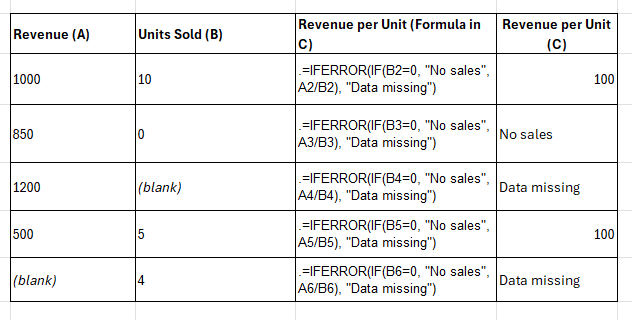
A (Revenue) B (Units Sold) $1000 10 $850 0 $1200 (blank) Calculate Revenue per Unit. If Units = 0, say “No sales”. If data is missing/invalid, say “Data missing”.
=IFERROR(IF(B2=0, "No sales", A2/B2), "Data missing")
2. Smart VLOOKUP
If product is “Test”, return “Test Product”. Otherwise look it up. If lookup fails, return “Product not found”.
Suppose you’re using VLOOKUP to pull product prices from a price list:
=VLOOKUP(D2, ProductTable, 2, FALSE)Wrap with IFERROR:
=IFERROR(VLOOKUP(D2, ProductTable, 2, FALSE), "Product not found")✅ Combine IF and IFERROR:
=IFERROR(IF(D2="Test", "Test Product", VLOOKUP(D2, Table, 2, 0)), "Product not found")Now your formula is bulletproof and dynamic.
3. Grading System
You’re building a grading system:
Score 85 72 Error Score >= 80 is Pass, else Fail. If input is text/error, return “Invalid input”.
=IFERROR(IF(A2>=80, "Pass", "Fail"), "Invalid input")
🔐 Expert Tip: IFERROR Handles All Errors
Here are some of the error types IFERROR can catch:
| Error Type | Description |
| #DIV/0! | Division by zero |
| #VALUE! | Wrong data type |
| #REF! | Invalid cell reference |
| #N/A | Lookup failed |
| #NUM! | Invalid numeric value |
| #NAME? | Misspelled function or name |
| #NULL! | Incorrect range operator |
Using IFERROR gives you universal protection for any formula.
📘 Quick Comparison Table
| Formula Type | What It Does |
| =IF(A2=0, “Zero”, A2) | Handles specific logic |
| =IFERROR(A2/B2, “Error!”) | Handles any error |
| =IFERROR(IF(B2=0, “Zero”, A2/B2), “Invalid input”) | Handles logic and fallback in case of error |
🛠 When to Use IF + IFERROR vs IFERROR Alone
| Situation | Best Function |
| You want custom message on ANY error | IFERROR |
| You want to apply logic AND handle error | IF + IFERROR |
| You want to check multiple error types | IFERROR or IFS + IFERROR |
| You want error-free calculations | Always wrap with IFERROR or IFNA |
🚫 Common Mistakes
❌ 1. Putting IFERROR around IF too early
Don’t wrap IF too soon. If your IF has logic that must be evaluated, place IF inside IFERROR so the fallback message is a last resort.
❌ 2. Missing conditions inside IF
Always include both value_if_true and value_if_false. If you only specify one outcome, Excel might return unexpected results.
❌ 3. Using old IF(ISERROR(…)) patterns
Before Excel 2007, we used:
=IF(ISERROR(A2/B2), "Error", A2/B2)Now you can simplify it with:
=IFERROR(A2/B2, "Error")Cleaner, faster, and easier to read.
🔁 Bonus: Nested IFERRORs
You can nest multiple IFERRORs to check various formulas in order:
=IFERROR(VLOOKUP(D2, Table1, 2, FALSE), IFERROR(VLOOKUP(D2, Table2, 2, FALSE), "Not found"))Try Table1 first → if not found, try Table2 → else show “Not found”.
📌 Final Thoughts
Combining IF and IFERROR in Excel gives you the flexibility to:
- Write smart formulas
- Handle multiple outcomes
- Avoid broken spreadsheets
- Create user-friendly dashboards
Now your formulas will not only work flawlessly, but also speak clearly when something goes wrong—an essential concept in the basics of advanced Excel and a key skill taught in a complete advanced Excel course.
💬 What’s Next?
- Learn IFNA() for handling just #N/A errors in lookups
- Use IFS() for multiple logical conditions
- Pair with TEXT() for better messages:
=IFERROR(A2/B2, "Error: check value in " & ADDRESS(ROW(B2), COLUMN(B2)))Find Our Locations
Visit any of our three convenient branches or contact us directly.
Pal Branch
Address: 115, Raj Victoria Complex, Pal Gam Circle, Pal.
Phone: +91-9825771641
Turn Negatives Into Productivity!
Master functions like ABS, MOD, and Pivot Tables with our specialized
courses in Advanced Excel and Data Science.

