

If you want to merge names, addresses, or custom labels quickly, the CONCATENATE function in Excel is your go-to tool. It helps you join text from multiple cells into one, making reports and data formatting cleaner and faster. Whether you’re taking an advance excel course with certificate, looking for an advance excel training institute or even a basic and advanced excel course near me, mastering CONCATENATE is a must for smarter spreadsheets.
In this guide, we’ll break down exactly how CONCATENATE works — including its syntax, quirks, and where it fits in your spreadsheet toolkit. You’ll learn the common mistakes to avoid (like forgetting to add spaces between joined elements), how to mix static text with cell references, and why it’s often smarter to use CONCATENATE than manual editing. We’ll also show off real-world use cases in marketing, HR, finance, and operations — because once you see it in action, you’ll wonder how you ever lived without it.
And we won’t stop there — we’ll also explore what comes next. While the CONCATENATE function in Excel is widely used, it’s now replaced by newer functions like TEXTJOIN() and CONCAT(), which provide cleaner syntax and greater flexibility for tasks like handling delimiters or ignoring blanks. In this guide, we’ll compare all three functions and help you choose the best fit for your needs. Whether you’re enrolled in an advance excel course with certificate, searching for an advance excel training institute, or considering a basic and advanced excel course near me, this lesson will help you master text manipulation and take your skills to the next level. ✅
💡 What Is the CONCATENATE Function in Excel?
The CONCATENATE function in Excel lets you join together text, numbers, and values from multiple cells into one string (aka one combined output).
Think of it like gluing pieces of text together.
✅ It works great for:
- Names
- Addresses
- Email formatting
- Labels
- Reports and forms
📘 Syntax
excel
CopyEdit
=CONCATENATE(text1, [text2], …)
Each text1, text2, etc. can be:
- A direct string like ” “
- A cell reference like A1
- A number or another function
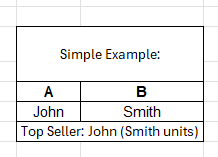
🔢 Simple Example:
You have:
| A | B |
| John | Smith |
Then this formula:
excel
CopyEdit
=CONCATENATE(A1, ” “, B1)

✅ Returns: “John Smith”
🧪 Real-Life Use Cases for CONCATENATE in Excel
Let’s see where this function actually helps you get work done:
1. 🧍 Full Names from First & Last
| A | B |
| Emily | Chen |
excel
CopyEdit
=CONCATENATE(A2, ” “, B2)

✅ Output: “Emily Chen”
Use this in HR sheets, directories, or forms.
2. 🏠 Combine Address Fields
| A (Street) | B (City) | C (Zip) |
| 123 Main | Seattle | 98101 |
excel
CopyEdit
=CONCATENATE(A2, “, “, B2, “, “, C2)
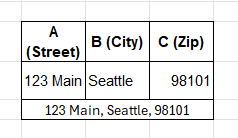
✅ Output: “123 Main, Seattle, 98101”
Great for mail merges, reports, or labels.
3. 📧 Auto-Create Email Addresses
| A | B |
| jdoe | example.com |
excel
CopyEdit
=CONCATENATE(A2, “@”, B2)
✅ Output: “jdoe@example.com”
Perfect for auto-generating email addresses.
4. 🧾 Invoice Numbers or IDs
| A | B |
| INV | 1023 |
excel
CopyEdit
=CONCATENATE(A2, “-“, B2)
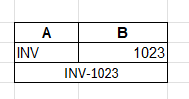
✅ Output: “INV-1023”
Useful for ID management, inventory systems, or orders.
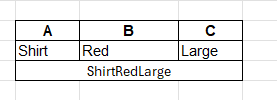
5. 📦 Build Product Labels
| A | B | C |
| Shirt | Red | Large |
excel
CopyEdit
=CONCATENATE(A2, ” – “, B2, ” – “, C2)
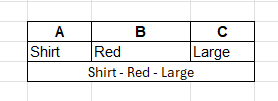
✅ Output: “Shirt – Red – Large”
Quick and clean product tagging in ecommerce or POS systems.
🔁 CONCATENATE vs Modern Alternatives
While CONCATENATE() is still supported, modern Excel has two new functions that are better in most cases:
✅ TEXTJOIN()
Best for joining ranges and handling empty cells automatically.
excel
CopyEdit
=TEXTJOIN(” “, TRUE, A1, B1, C1)
- ” ” = separator
- TRUE = ignore empty cells
✅ CONCAT()
Same as CONCATENATE(), but can handle ranges:
excel
CopyEdit
=CONCAT(A1:C1)
Use it for fast merging without having to name every cell.
⚠️ Common Mistakes When Using CONCATENATE
❌ Forgetting to Add Spaces or Punctuation
This:
excel
CopyEdit
=CONCATENATE(A1, B1)
Returns: “JohnSmith” ❌
✅ Fix:
excel
CopyEdit
=CONCATENATE(A1, ” “, B1)
❌ Too Many Arguments Manually Listed
Instead of:
excel
CopyEdit
=CONCATENATE(A1, ” “, B1, ” “, C1, ” “, D1)
Try:
excel
CopyEdit
=TEXTJOIN(” “, TRUE, A1:D1)
Cleaner and scalable.
❌ Mixing Numbers and Text Improperly
Excel will convert numbers to text automatically — but always check your formatting. Use TEXT() for better control:
excel
CopyEdit
=CONCATENATE(“Invoice: “, TEXT(A1, “0000”))
📈 How to Use CONCATENATE in Dashboards & Reports
Use it to:
- Combine data columns into readable text
- Auto-generate labels
- Format tooltips
- Create chart titles dynamically
💡 Example:
excel
CopyEdit
=”Top Seller: ” & A2 & ” (” & B2 & ” units)”
Gives you:
“Top Seller: Emily Chen (524 units)”
📌 Table Summary: CONCATENATE Function Formulas
| Formula | Description |
| =CONCATENATE(A1, B1) | Joins two cells |
| =CONCATENATE(A1, ” “, B1) | Joins with space |
| =CONCATENATE(A1, “, “, B1, “, “, C1) | Joins with commas |
| =TEXTJOIN(” “, TRUE, A1:C1) | Modern, cleaner alternative |
| =CONCAT(A1:C1) | Simple merge of a range |
🧠 Pro Tips for CONCATENATE Mastery
✔ Use ” & ” instead of CONCATENATE() for quicker writing:
excel
CopyEdit
=A1 & ” ” & B1
✔ Use TEXT() for formatting numbers:
excel
CopyEdit
=CONCATENATE(“Due: $”, TEXT(B2, “#,##0.00”))
✔ Combine with logic:
excel
CopyEdit
=IF(A2=””,”Missing”,CONCATENATE(A2,” – “,B2))
✔ Use in drop-down menus or tooltips in Excel dashboards
🔚 Conclusion
The CONCATENATE function in Excel is one of the simplest yet most powerful ways to combine text from multiple cells into one. Whether you’re formatting names, building full addresses, generating IDs, or creating dynamic dashboards, =CONCATENATE() makes data cleaner and more presentable while saving valuable time. It’s a must-have skill for anyone working with customer data, reports, or forms where custom formatting matters.
For advanced users, Excel now offers modern alternatives like TEXTJOIN() and CONCAT, which provide cleaner syntax and greater flexibility — especially when working with delimiters or ignoring blanks. Still, the classic CONCATENATE remains highly effective and widely used. If you’re considering an advance excel course with certificate, joining an advance excel training institute, or searching for a basic and advanced excel course near me, mastering functions like CONCATENATE will give you a strong edge in handling text-based data.
Summary
✨ Mastering the CONCATENATE Function in Excel
The CONCATENATE function in Excel is your shortcut to combining text, numbers, and values into one clean output. Instead of typing manually, you can join names, addresses, emails, or IDs in seconds — making your spreadsheets smarter and cleaner. Whether you’re enrolled in an advance excel course with certificate, exploring an advance excel training institute, or even searching for a basic and advanced excel course near me, this function is a must-have skill. ✅
🔑 Where CONCATENATE Helps You Most:
- 👤 Join first + last names →
"Emily Chen" - 🏠 Merge address fields →
"123 Main, Seattle, 98101" - 📧 Auto-create email IDs →
"jdoe@example.com" - 🧾 Generate invoice numbers →
"INV-1023" - 📦 Build product labels →
"Shirt - Red - Large"
⚡ Why It’s Essential for You:
✔ Saves time in reports & dashboards
✔ Works across HR, finance, marketing & operations
✔ Forms the foundation for advanced Excel text functions
🔁 Beyond CONCATENATE:
While still widely used, Excel now has TEXTJOIN() and CONCAT() for easier syntax and handling ranges. But mastering CONCATENATE first builds your confidence in text manipulation and makes transitioning smoother.
If you’re looking for advance excel near me or aiming for professional growth through structured training like an advance excel course with certificate, this skill will give you an edge in data management, reporting, and analysis.
OUR BRANCHES
G-40, Nav Mangalam Complex, opp. Agersen Bhavan, City Light
G-48-B, J9 high street, Vesu Canal Rd, Vesu
115, Raj Victoria complex, Pal

