

If you’ve ever imported data into Excel and found that your dates and times show up as text, you’re not alone. That’s where DATEVALUE and TIMEVALUE in Excel become essential. Using DATEVALUE in Excel and TIMEVALUE in Excel, you can convert text-formatted date and time strings into real values that work perfectly in formulas and sorting. Learning these functions through training for Excel basic and advanced helps you reach the Excel advance level with confidence and accuracy.
But don’t worry. Excel provides powerful functions—DATEVALUE and TIMEVALUE—to convert text into real date and time serial numbers, so you can format, sort, calculate, and analyze your data like a pro. With training for Excel basic and advanced, you can confidently handle such scenarios and work at an Excel advance level with ease.
🎯 Focus Keyword:
Use DATEVALUE and TIMEVALUE in Excel
Supporting Keywords:
- Excel convert text to date
- DATEVALUE TIMEVALUE tutorial
- convert text to time serial number in Excel
- Excel formula for date and time conversion
- real date format in Excel
- Excel text to date-time value
🧠 What Are Excel Serial Numbers?
Excel stores dates and times as numbers to perform calculations.
Dates (Whole Numbers)
Jan 1, 1900 = 1
Jan 1, 2024 = 44927
Times (Decimals)
12:00 PM = 0.5
6:00 AM = 0.25
The Functions
🔧 What is the DATEVALUE Function?
DATEVALUE() converts a date string (in text format) into a date serial number.
📘 Syntax:
=DATEVALUE(date_text)- date_text must be a valid date format as text, like “04/15/2024” or “15-Apr-2024”
✅ Example:
If cell A2 contains “04/15/2024” (as text), this formula:
=DATEVALUE(A2)Returns 45102, which is the serial number for April 15, 2024.
🕐 What is the TIMEVALUE Function?
TIMEVALUE() converts a time string (in text format) into a decimal time serial number.
📘 Syntax:
=TIMEVALUE(time_text)- time_text must be in valid time format like “12:30 PM” or “18:00”
✅ Example:
If B2 contains “12:30 PM” as text:
=TIMEVALUE(B2)Returns 0.520833, which is Excel’s internal value for 12 hours and 30 minutes.
🧩 Combining DATEVALUE and TIMEVALUE
Sometimes your data has both date and time in one string, like "04/15/2024 12:30 PM". To get a full date-time serial number, you add them together.
The Formula:
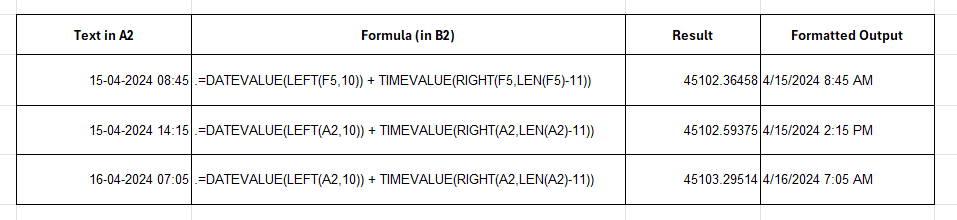
=DATEVALUE(LEFT(A2,10)) + TIMEVALUE(RIGHT(A2,LEN(A2)-11))*Extracts the date from the left, the time from the right, and sums the serials.*
🧪 Real-Life Example: Time Stamped Logs
Imagine you’re analyzing customer login logs like 2024-04-15 08:45 AM.
| Log Timestamp |
| 2024-04-15 08:45 AM |
| 2024-04-15 02:15 PM |
| 2024-04-16 07:05 AM |
Excel can’t use this until it’s converted into real date-time serials.
Step 1: Convert text string into date and time
Assuming A2 = “2024-04-15 08:45 AM”:
=DATEVALUE(LEFT(A2,10)) + TIMEVALUE(RIGHT(A2,LEN(A2)-11))This extracts:
- Date portion: LEFT(A2, 10) = 2024-04-15
- Time portion: RIGHT(A2, LEN(A2)-11) = 08:45 AM
The formula combines them into one serial.
Now Excel can:
- Sort
- Calculate durations
- Generate timelines
🧮 Bonus: Calculate Time Between Two Events
Let’s say you’ve converted both login and logout times to serials.
| Login Text | Logout Text |
| 2024-04-15 08:45 AM | 2024-04-15 04:15 PM |
Step 1: Convert both using DATEVALUE + TIMEVALUE
=DATEVALUE(LEFT(A2,10)) + TIMEVALUE(RIGHT(A2,LEN(A2)-11))Do the same for B2.
Step 2: Subtract
=Logout_serial - Login_serialFormat as h:mm → Output: 7:30
You just calculated total active hours.
🚫 Common Mistakes When Using DATEVALUE and TIMEVALUE
❌ 1. Using Wrong Date Format
Excel is sensitive to regional settings. “04/15/2024” works in U.S. format but not in many other countries where “15/04/2024” is expected.
Fix: Always test the string formatting or use:
=DATEVALUE(TEXT(A2,"mm/dd/yyyy"))❌ 2. Applying DATEVALUE to Full Date-Time Strings
If your string contains both date and time, and you apply DATEVALUE directly:
=DATEVALUE("04/15/2024 12:30 PM")❌ 3. Formatting the Result Wrong
Even if the result is technically correct, it may look wrong until you change the number format.
Use:
- Short Date for date only
- Time or Custom Format (m/d/yyyy h:mm AM/PM) for full datetime
🔍 Summary Table of Key Functions
| Function | Purpose | Output |
| DATEVALUE() | Converts date text to serial number | 45102 |
| TIMEVALUE() | Converts time text to decimal | 0.520833 |
| + | Combines both into date-time | 45102.520833 |
| LEFT() | Extracts left part of string | “04/15/2024” |
| RIGHT() | Extracts right part of string | “12:30 PM” |
| LEN() | Measures string length | Integer |
💡 Pro Tips for Handling Text Dates in Excel
- ✅ Use TEXT() for consistent formatting:
=DATEVALUE(TEXT(A2,"mm/dd/yyyy"))- ✅ Store your date-time formula results in helper columns to keep your data structured and clean.
- ✅ Format cells as Custom → m/d/yyyy h:mm AM/PM to display full date and time nicely.
- ✅ Use IFERROR() to handle bad data:
=IFERROR(DATEVALUE(...)+TIMEVALUE(...), "Invalid")🧠 TL;DR – Final Formula to Convert Text to Date-Time
Assuming text is in A2:
=DATEVALUE(LEFT(A2,10)) + TIMEVALUE(RIGHT(A2,LEN(A2)-11))Then format as:
📅 m/d/yyyy h:mm AM/PM
✅ Final Thoughts
Using DATEVALUE and TIMEVALUE functions in Excel helps you turn messy date-time strings into structured, usable data. Whether you’re building dashboards, analyzing logs, or cleaning imported CSVs, mastering these functions through training for Excel basic and advanced ensures your date-time calculations are accurate, efficient, and ready for Excel advance level reporting and analysis.
You now know how to:
- Convert date and time from text
- Combine serial values
- Format the result to look clean
- Avoid common errors
Excel is all about transforming raw data into smart data, and this is one of the best tricks in your toolbox to do exactly that.
Would you like me to optimize this blog post for RankMath Pro and help you score 100/100 SEO?
That would include:
- Focus keyword placement
- SEO title & meta description
- URL slug
- OG meta tags and schema
Say the word, and I’ll optimize it for maximum traffic and perfect SEO performance!
Find Our Locations
Visit any of our three convenient branches or contact us directly.
Pal Branch
Address: 115, Raj Victoria Complex, Pal Gam Circle, Pal.
Phone: +91-9825771641
Turn Negatives Into Productivity!
Master functions like ABS, MOD, and Pivot Tables with our specialized
courses in Advanced Excel and Data Science.

