

If your Excel formulas ever touch geometry, circles, or anything trigonometric — you’ll eventually run into the need for π (Pi). Thankfully, Excel makes it easy with the built-in PI() function, saving you from manually typing long decimal approximations.
Whether you’re calculating the area of a circle, arc lengths, or applying physics formulas, the PI function is essential for accuracy and automation in your spreadsheet work.
💡 What Is the PI Function in Excel?
The PI() function in Excel returns the mathematical constant π, which is approximately:
=PI()
✅ Returns: 3.14159265358979
This is a constant — not meant to be typed manually, because Excel already gives you the most accurate representation of it.
📚 The Role of π (Pi) in Math and Why It Matters in Excel
π is the ratio of a circle’s circumference to its diameter. No matter how big or small a circle is:
Circumference ÷ Diameter = Pi ≈ 3.14159...You’ll need π whenever you’re working with:
- Circles and spheres
- Geometry
- Trigonometry
- Engineering formulas
- Physics and wave functions
And Excel makes it super easy.
🧪 Real-Life Examples Using PI in Excel
Let’s break down some practical examples where the PI function in Excel really shines.
1. 🟠 Calculate the Circumference of a Circle
Formula:
=2*PI()*A1
Where A1 contains the radius. Example: Radius = 5 → 31.4159
2. 🔵 Calculate the Area of a Circle
Formula:
=PI()*A1^2
Where A1 is the radius. Example: Radius = 7 → 153.938
3. 🔴 Calculate the Volume of a Cylinder
Formula for volume = πr²h. In Excel:
=PI()*A1^2*B1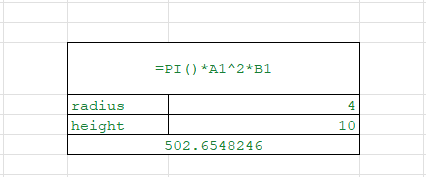
Where A1 = radius and B1 = height.
4. ⚡ Physics: Oscillation and Waves
Sine waves in physics and audio engineering use 2π as part of the formula:
=SIN(2*PI()*A1)
5. 🎨 Circle-Based Dashboards
Designing gauge charts or radar plots? You’ll often need radians:
=PI()/2
=2*PI()
=PI()*angle/180
These help rotate elements or calculate angles in radians.
🎓 Pro Tip: Use PI in Degrees to Radians Conversion
Excel’s SIN, COS, and TAN functions work in radians, not degrees.
To convert degrees to radians:
=Angle_in_degrees * PI()/180
Example: =30*PI()/180 → 0.523598… (This is 30° in radians).
🔄 Combine PI with Other Excel Functions
| Use Case | Formula |
| Circle Area | =PI()*A1^2 |
| Circle Circumference | =2*PI()*A1 |
| Convert Degrees to Radians | =A1*PI()/180 |
| Arc Length | =PI()*A1*B1/180 |
| Circle Segment Area | =(A1^2/2)*(PI()/180)*(B1-SIN(B1*PI()/180)) |
❓ Why Not Just Type 3.14?
Great question.
Typing 3.14 is:
- Less accurate
- Not scalable
- Not transparent
Using =PI() gives:
- Precision (15 decimals)
- Readability
- Easy updates
- Best practice for formulas
⚠️ Common Mistakes Using PI in Excel
❌Wrong
=PI*r^2

(PI is a function, needs parenthesis)
=SIN(90)

(Input must be in radians)
✅Right
=PI()*r^2

=SIN(90*PI()/180)

📌 Excel PI Function Quick Reference
| Use Case | Formula | Result |
| Get Pi | =PI() | 3.14159 |
| Area of Circle (r=6) | =PI()*6^2 | 113.097 |
| Circumference (r=3) | =2*PI()*3 | 18.8496 |
| Radians for 45° | =45*PI()/180 | 0.7854 |
| Volume of Cylinder (r=2, h=8) | =PI()*2^2*8 | 100.531 |
✍️ Real-Life Business Scenarios
🏢 Manufacturing
- Use PI to calculate material needed for circular machine parts or pipes.
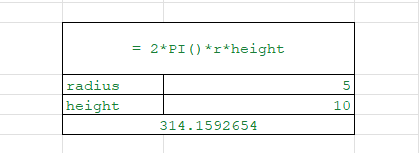
- Example: pipe insulation area = 2*PI()*r*height
🏗️ Construction
Volume of concrete needed for cylindrical columns:
excel
CopyEdit
=PI()*r^2*h

📈 Data Visualization
- Custom dashboards using radial charts need angles in radians.
Combine PI with other math functions to create dynamic visualizations.
⚙️ Engineering Design Sheets
- Calculate values for pressure vessels, rotational energy, or fluid dynamics — all involving π.
📌 Summary of Why PI() Matters in Excel
- ✅ Returns full 15-digit accurate π
- 🔢 Works with all math and trig functions
- 🧠 Avoids manual errors and improves formula integrity
- ⚙️ Essential for geometry, engineering, physics, dashboards
Conclusion
The PI function in Excel may look simple, but it unlocks a world of powerful mathematical and engineering calculations. From modeling the real world to building analytical tools, =PI() gives you the accuracy and flexibility to handle everything from geometry formulas to trig-based dashboards. Don’t type in 3.14 — go pro and let Excel handle the math precision for you. If you’re looking for advanced Excel training courses near me or an advanced Excel training institute near me, our Excel basic to advance course and advanced Excel course offline near me programs will help you master functions like PI and more.
Summary
The PI() function in Excel is a simple yet powerful tool for geometry, trigonometry, engineering, and data visualization. Instead of manually typing 3.14, Excel’s built-in =PI() provides π accurate to 15 decimal places (3.14159265358979), ensuring precision in calculations.advanced excel training institute near me
📐 Why it matters: π is the ratio of a circle’s circumference to its diameter, essential in formulas for circles, cylinders, oscillations, and more.
✅ Syntax:=PI() → returns π. No arguments needed.
🧪 Practical uses:
- Circumference:
=2*PI()*radius - Area of circle:
=PI()*radius^2 - Cylinder volume:
=PI()*r^2*h - Wave functions:
=SIN(2*PI()*t) - Radians conversion:
=Degrees*PI()/180
🎯 Business & real-world applications:
- Manufacturing: pipe insulation, circular machine parts
- Construction: concrete for cylindrical columns
- Engineering: pressure vessels, fluid dynamics
- Dashboards: circular KPI charts, gauge designs
⚠️ Common mistakes:
- Forgetting parentheses (
PI*r^2❌ →PI()*r^2✅) - Using degrees without converting (
=SIN(90)❌ →=SIN(90*PI()/180)✅) - Hardcoding 3.14 instead of
=PI()
📌 Key takeaway: Always use =PI() for accuracy, readability, and automation. It integrates seamlessly with Excel’s math and trig functions, empowering professionals in engineering, finance, construction, and analytics.
👉 If you’re looking for advanced Excel training courses near you in Surat, our programs cover PI and many other advanced functions to level up your spreadsheet skills.advanced excel training institute near me
The images, videos used in this post are for informational and educational purposes only. We do not own the rights to these images, videos and all rights remain with their respective owners.


Connect With Us
Follow us for updates on our latest courses and events!