

Welcome to today’s deep dive into one of Excel’s most powerful and essential tools: the SUM function in Excel. Whether you’re just starting out with spreadsheets or already a data-savvy professional, understanding how to use SUM effectively is a must.
This function is the backbone of almost every financial model, performance report, inventory tracker, and business dashboard. Without it, data remains static — but with it, you gain the ability to calculate, analyze, and make smarter decisions quickly and accurately.
💡 What Is the SUM Function in Excel?
The SUM function in Excel is used to add numbers together — plain and simple. It’s one of the most frequently used functions across all industries and departments because it works for almost anything involving totals.
Think of it as your go-to calculator for summing everything from expenses and sales to grades and inventory.
📘 SUM Syntax
=SUM(number1, [number2], ...)number1, number2, … are the cells, ranges, or values you want to add.
But in most cases, you won’t add numbers manually. You’ll sum a range — and that’s where SUM becomes extremely useful.
🔢 Example: Add a Range of Cells
Here’s a basic command that sums up values in A1 to A10:
=SUM(A1:A10)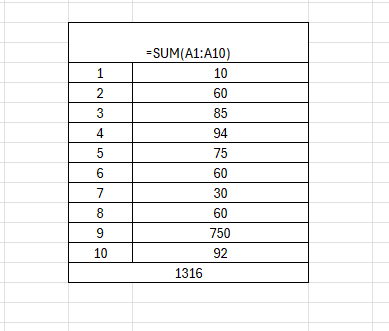
✅ Result: Adds all numbers in cells A1 through A10.
🎯 Why You Should Use the SUM Function Instead of Manual Addition
Let’s say you manually added:
=A1+A2+A3+A4+A5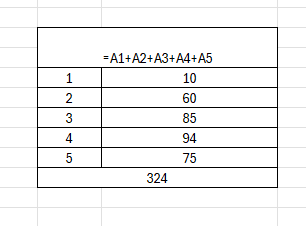
Sure, it works. But:
- It’s not scalable
- It’s hard to maintain
- It’s easy to break when your data changes
Instead, use:
=SUM(A1:A5)Much cleaner. Much smarter. And easy to update!
🧪 Real-Life Scenarios Using the SUM Function in Excel
1. 💼 Summing Monthly Sales
=SUM(B2:B13)Where B2:B13 contains monthly revenue. You get the total annual revenue in one click.
2. 📊 Adding Student Scores
=SUM(D2:H2)Adds up test scores across multiple subjects for a student. Perfect for calculating total marks or averages.
3. 🛒 Total Cost of Items
| Item | Price |
| Apples | 3 |
| Bananas | 2 |
| Oranges | 4 |
=SUM(B2:B4)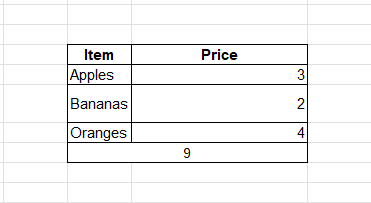
And boom — total = 9
4. 🧾 Budget Tracking
=SUM(C2:C100)Instantly gives you your total expenses. Combine with charts for budgeting dashboards!
⚙️ Advanced SUM Tricks
🔁 Sum Across Non-Contiguous Cells
=SUM(A1, A3, A5)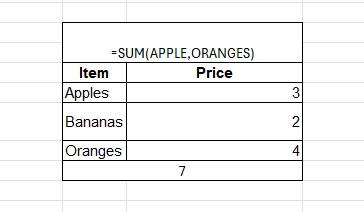
Adds only specific cells (A1, A3, A5), not a full range.
📂 Sum Across Sheets
Want to sum the same cell across multiple sheets?
=SUM(Sheet1:Sheet3!A1)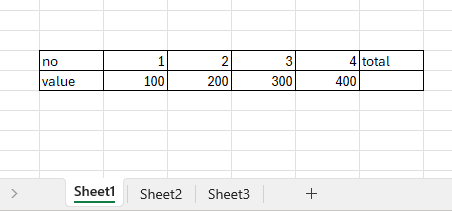
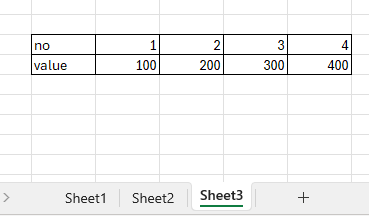
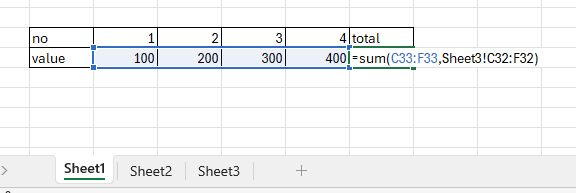
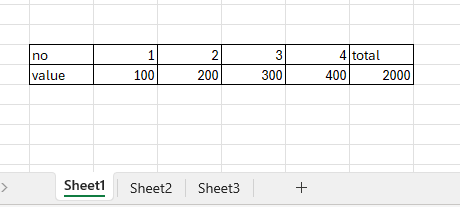
Adds all A1 values across Sheet1 to Sheet3 — perfect for monthly reports!
📌 Use with Named Ranges
If you’ve named a range “Sales2024”:
=SUM(Sales2024)More readable, less error-prone.
✅ Combine SUM with Other Functions
📉 SUM + IF = SUMIF
Sum only if a condition is met. Example: Total sales where region = “East”
=SUMIF(A2:A10, "East", B2:B10)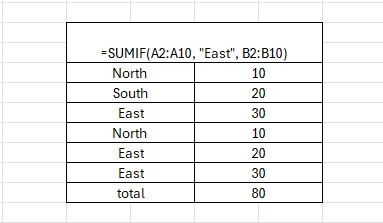
💡 SUM + FILTER (Office 365/Excel 2021)
=SUM(FILTER(B2:B10, A2:A10="East"))Dynamic filtering and summing in one shot!
📐 SUM + ROUND
=ROUND(SUM(A1:A10), 2)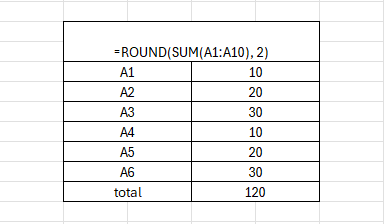
Sums and rounds the result to 2 decimal places.
⚠️ Common Mistakes When Using the SUM Function
Wrong
=SUM(A1,A10)
(Only adds A1 and A10)
Including Text/Errors
(Can return #DIV/0!)
Right
=SUM(A1:A10)
(Adds all cells in range)
Use IFERROR or clean data first
📚 SUM Function Table Summary
| Formula | Purpose |
| =SUM(A1:A10) | Add numbers in A1 through A10 |
| =SUM(A1, A3, A5) | Add specific cells |
| =SUM(Sheet1:Sheet3!B2) | Add B2 from multiple sheets |
| =SUMIF(A2:A10, “East”, B2:B10) | Conditional sum |
| =SUM(FILTER(B2:B10, A2:A10=”East”)) | Dynamic sum (Office 365) |
🧩 Excel Dashboards with SUM Function
In dashboards, SUM is the backbone of:
- Totals and KPIs
- Dynamic charts
- Performance summaries
- Rolling totals and comparisons
Pair with:
- IFERROR to avoid #DIV/0!
- ROUND for clean display
- TEXT to combine with labels
🧠 Pro Tips
✔ Use cell references, not hardcoded values
✔ Name your ranges for clarity
✔ Use structured references in Excel Tables (e.g. =SUM(Table1[Sales]))
✔ Combine with dropdowns + SUMIF for interactive reports
🔚 Conclusion
The SUM function in Excel is more than just basic math — it’s the foundation of smart, scalable spreadsheets. Whether you’re budgeting, analyzing, tracking, or reporting, using =SUM(range) the right way keeps your data clean, fast, and dynamic. From students taking an advance Excel for beginners course to professionals in advanced Excel for accountants or learners enrolled in an advanced Excel data analysis course at an advance Excel institute, mastering SUM is a crucial first step.
Once you start building reports with SUM, you’ll never look back.


Connect With Us
Follow us for updates on our latest courses and events!