
The MAX Function in Excel is a simple but powerful tool that instantly identifies the highest value in any dataset. Whether you’re tracking sales, reviewing grades, or managing inventory, MAX saves time and delivers quick insights.
In this guide, you’ll learn how the MAX function works, how it behaves with blank cells or errors, and how to apply it across ranges for smarter analysis.
💡 What Is the MAX Function in Excel?
The MAX function returns the largest numeric value in a given set of numbers. Use it when you need to answer questions like:
- What’s the highest sale this month?
- Who scored the highest in the exam?
- What’s the peak value in my data set?
📘 Syntax:
=MAX(number1, [number2], ...)number1, number2… can be individual numbers, cell references, or ranges.
Most common usage is with a full range, like:
=MAX(A1:A10)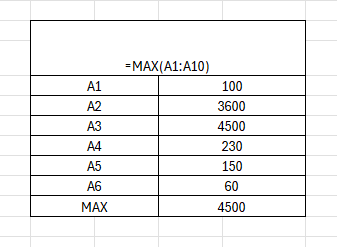
This gives you the highest value found from A1 to A10.
🔢 Example:
If A1 to A5 contain:
45, 98, 72, 110, 84
Then:
=MAX(A1:A5)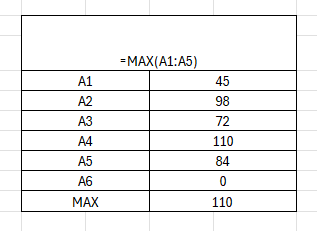
✅ Result: 110
🧪 Real-Life Use Cases for MAX Function in Excel
Let’s explore how the MAX function helps you in real-world situations:
1. 🛍️ Find the Highest Sale of the Month
| Day | Sales |
| 1 | 300 |
| 2 | 450 |
| 3 | 200 |
=MAX(B2:B31)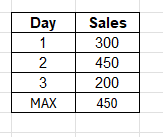
✅ Returns the highest daily sale in the month. Great for sales dashboards.
2. 🎓 Find Top Score in a Class
| Name | Score |
| Alice | 78 |
| Bob | 91 |
| Cara | 85 |
=MAX(B2:B10)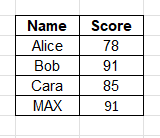
Shows the top performer’s score. Add a VLOOKUP or INDEX/MATCH to get the name too.
3. 📦 Max Inventory Count
You’re tracking inventory in multiple locations:
=MAX(C2:C100)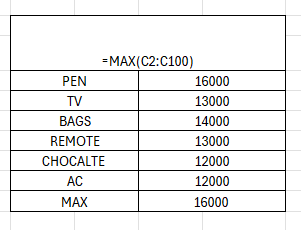
This gives the highest stock level across all locations — useful for forecasting or alerts.
4. 📈 Peak Website Traffic Day
Use:
=MAX(D2:D32)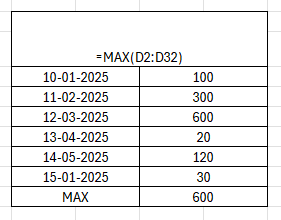
To find the day with the highest number of visitors. Pair with a date lookup for insights.
5. 💵 Compare Monthly Revenues
You have revenues from multiple months:
=MAX(Jan:Dec!B2)Advanced example: finds the maximum value in B2 across all sheets named Jan to Dec.
🧠 Combine MAX with Other Excel Functions
The real magic starts when you combine MAX() with other logic functions. Here are some power combos:
✅ MAX + IF
Show a message if the highest value exceeds a threshold:
=IF(MAX(A2:A100)>1000, "Over Target", "Normal")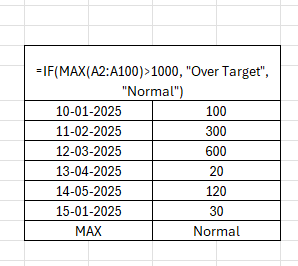
🔍 MAX + VLOOKUP
Get the name associated with the max value:
=VLOOKUP(MAX(B2:B10), B2:C10, 2, FALSE)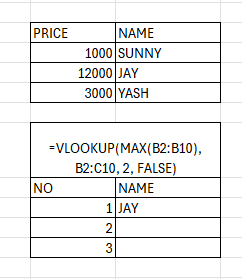
(Assumes score is in column B, name is in C — adjust as needed.)
📅 MAX + DATE Logic
Find the most recent or future-dated max value (e.g., highest due date):
=MAX(DATE_COLUMN)Use with conditional formatting to highlight upcoming peaks.
🧩 Use in Dashboards
The MAX function in Excel powers key metrics like:
- Highest sales day
- Top-performing product
- Peak usage time
- Record-breaking revenue
- Fastest delivery time
Pair with:
- Conditional formatting to highlight the max value
- Sparkline charts for visual peak indicators
- INDEX/MATCH to display context alongside the value
💡 Dashboard Example:
="Peak Sales: $" & MAX(B2:B32)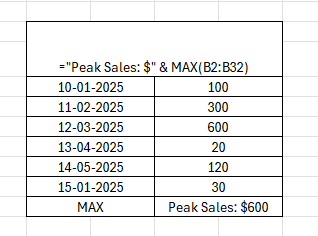
Result:
Peak Sales: $2,175
Simple, visual, and auto-updating.
📌 Summary Table: MAX Function Formulas
| Formula | Purpose |
| =MAX(A1:A10) | Finds the highest value in a range |
| =MAX(A1, A3, A5) | Highest among specific cells |
| =MAX(Sheet1:Sheet12!B2) | Max across multiple sheets |
| =IF(MAX(A2:A100)>500, “High”, “Low”) | Threshold logic |
| =VLOOKUP(MAX(B2:B10), B2:C10, 2, FALSE) | Find name tied to highest value |
⚠️ Common Mistakes with MAX Function
❌ Including Text or Blank Cells
MAX() ignores text, blanks, and errors — but if your dataset is mixed, results may not reflect expectations.
Clean your data with:
=IFERROR(A2,"")❌ Not Understanding Ties
If there are duplicate max values, MAX() returns the value — but you may need INDEX/MATCH to retrieve all matching rows.
❌ Using with Hidden Rows (Not Filtered)
MAX() includes hidden cells — so be aware when working with collapsed data. Use SUBTOTAL() or AGGREGATE() for filtered lists.
🔚 Conclusion
The MAX Function in Excel is one of the easiest ways to unlock insights from your data — finding peaks, top performers, and standout results with a single formula. Whether you’re building dashboards, evaluating performance, or monitoring inventory, =MAX(range) gives you instant visibility into what’s working best. And when you combine it with IF, VLOOKUP, or conditional formatting, your spreadsheets move from static to smart — helping you automate decision-making and reporting.
For anyone serious about career growth, mastering MAX is a must. From advanced Excel for data analyst roles to enrolling in an advanced Excel complete course, the function is a building block of professional reporting and analytics. Even if you’re preparing through an advanced Excel course for chartered accountants or sharpening your skills with advanced Excel and SQL training, MAX ensures your data analysis is faster, smarter, and more impactful.
Summary
The Excel MAX function is a fundamental tool for data analysis, designed to find the highest numeric value within a dataset.[1][2] Its straightforward syntax, =MAX(number1, [number2], …), allows it to be easily applied to ranges, arrays, or individual numbers.[3][4] This function is essential for various professionals who need to quickly identify peak values, such as top sales figures, the highest scores, or maximum revenues.[5][6]
Beyond its basic use, the MAX function’s power is amplified when combined with other Excel functions like IF, VLOOKUP, INDEX, and FILTER. This allows for more complex analyses, such as identifying the individual or item associated with the highest value. Real-world applications are extensive, from tracking top-performing employees to pinpointing days with the highest attendance or flagging record sales.
Mastering the MAX function is a key skill for anyone serious about data analysis. It forms a core component of many advanced Excel training courses aimed at data analysts and other professionals. By simplifying the process of finding maximum values, it saves time and provides immediate, actionable insights, making it an indispensable tool for smarter data management and reporting.


Connect With Us
Follow us for updates on our latest courses and events!