

Messy data in Excel becomes simple with the LEFT, RIGHT, and MID functions. Whether you’re trimming product codes, extracting first names, or pulling specific IDs, mastering these surgical text tools is essential for any business analyst.
In this guide, we’ll walk through step-by-step examples that you can use immediately to clean and organize your data efficiently.
🧠 What Are the LEFT, RIGHT, and MID Functions in Excel?
Think of a text string like a sentence or a word. These functions let you “slice” it:
- LEFT(): Pulls characters from the start.
- RIGHT(): Pulls characters from the end.
- MID(): Extracts characters from the middle.
Think of a text string like a sentence or word — these functions let you slice and dice it however you want.
📘 Syntax Breakdown
✅ LEFT Function
=LEFT(text, num_chars)- text: The cell or string you want to extract from
- num_chars: How many characters to extract from the beginning
✅ RIGHT Function
=RIGHT(text, num_chars)- Pulls from the end of the string
✅ MID Function
=MID(text, start_num, num_chars)- start_num: Where to start (1 = first character)
- num_chars: How many characters to extract starting from there
🔍 Simple Example with All Three
If A1 = “ExcelMastery”:
| Function | Formula | Result |
| LEFT | =LEFT(A1, 5) | Excel |
| RIGHT | =RIGHT(A1, 6) | stery |
| MID | =MID(A1, 6, 3) | Mas |
✅ This example clearly shows how each function slices different parts of the same string.
🧪 Real-Life Use Cases for LEFT, RIGHT, MID in Excel
Let’s look at how professionals use these functions every day:
1. 🧍 Extract First Names from Full Names
| A (Full Name) |
| Sarah Johnson |
If A2 = “Sarah Johnson”, extract everything before the space:
=LEFT(A2, FIND(" ", A2)-1)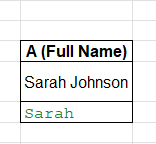
✅ This formula extracts everything before the space — i.e., the first name: “Sarah”
2. 📇 Extract Last Names
If A2 = “PROD-12345-XYZ”, extract the last 3 chars:
=RIGHT(A2, LEN(A2) - FIND(" ", A2))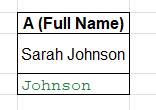
✅ Grabs everything after the space — i.e., the last name: “Johnson”
3. 🏷️ Extract Product Code Suffix
| A |
| PROD-12345-XYZ |
If A2 = “jane.doe@example.com”, extract everything after “@”:
=RIGHT(A2, 3)
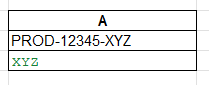
✅ Result: “XYZ”
4. 📦 Pull Middle Section of SKU
| SKU |
| ITM-456-RED |
Show only the last 4 digits of “1234567890123456”:
=MID(A2, 5, 3)
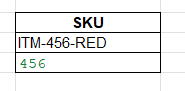
✅ Result: “456” — starts at the 5th character, extracts 3.
5. 📧 Extract Domain from Email Address
| A |
| jane.doe@example.com |
excel
CopyEdit
=RIGHT(A2, LEN(A2) - FIND("@", A2))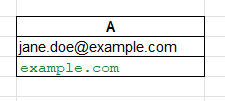
✅ Result: “example.com”
Useful for segmenting by domain or employer.
6. 🧾 Mask Credit Card Numbers
If A1 = 1234567890123456, you want to show only the last 4 digits:
=RIGHT(A1, 4)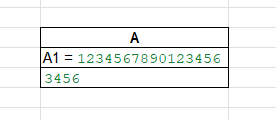
Then display it as:
="**** **** **** " & RIGHT(A1,4)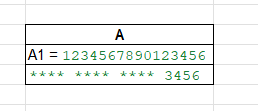
✅ Result: **** **** **** 3456
7. 📆 Extract Year from Date Text
If cell A2 contains March-2025:
=RIGHT(A2, 4)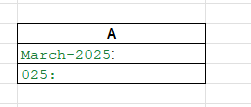
✅ Returns 2025
🔁 Combine LEFT, RIGHT, and MID with Other Functions
These three get powerful when you add logic:
✅ LEFT + FIND
Extract first word from a string:
=LEFT(A2, FIND(" ", A2)-1)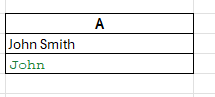
✅ RIGHT + LEN + FIND
Pull last name dynamically:
=RIGHT(A2, LEN(A2) - FIND(" ", A2))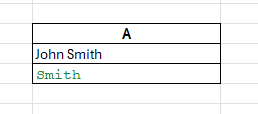
✅ MID + SEARCH
If values are separated by a dash (-):
=MID(A2, SEARCH("-", A2)+1, SEARCH("-", A2, SEARCH("-", A2)+1) - SEARCH("-", A2) -1)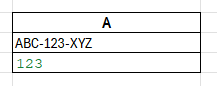
This extracts the middle part between two dashes — great for SKUs or IDs.
⚠️ Common Mistakes to Avoid
❌ Forgetting to Count from 1
In Excel, MID() starts from position 1, not 0 like in some programming languages.
❌ Overcounting Characters
If the num_chars in LEFT() or RIGHT() exceeds the length of the string, Excel still works — it just returns the whole string.
❌ Not Handling Dynamic Lengths
Don’t hardcode if string lengths vary. Use FIND() or SEARCH() for flexibility.
📊 Use in Dashboards and Automation
These functions are fantastic for:
- Creating readable IDs
- Trimming long strings
- Formatting outputs
- Generating email IDs
- Masking sensitive data
Pair with:
- IF(), LEN(), FIND(), SEARCH()
- Conditional formatting for cleaned results
- Data validation to trigger parsing
💡 Example: Dynamic Greeting Builder
="Hello, " & LEFT(A2, FIND(" ", A2)-1) & "!"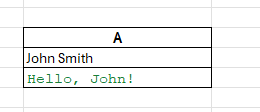
✅ Output: “Hello, Sarah!”
Personalized and automated. 🙌
📋 Table Summary: Excel Text Extraction Formulas
| Use Case | Formula | Result |
| First 5 chars | =LEFT(A1, 5) | First 5 letters |
| Last 4 digits | =RIGHT(A1, 4) | Final 4 characters |
| Middle section | =MID(A1, 3, 4) | Characters 3–6 |
| First name | =LEFT(A2, FIND(” “, A2)-1) | Name before space |
| Domain from email | =RIGHT(A2, LEN(A2)-FIND(“@”, A2)) | After @ |
🧠 Pro Tips
✔ Use TEXT() for formatted numbers like dates and currencies
✔ Use & instead of CONCATENATE to stitch multiple pieces
✔ Combine with TRIM() to remove unwanted spaces
✔ SEARCH() is case-insensitive, FIND() is case-sensitive — use wisely
🔚 Conclusion
The LEFT, RIGHT, and MID functions in Excel are your go-to tools for text extraction and manipulation. Whether you’re splitting names, formatting IDs, extracting codes, or building logic-based outputs, these functions give you complete control over handling text within your spreadsheets. They simplify repetitive tasks, reduce manual errors, and make working with messy data faster and more accurate. If you’re pursuing a certified advanced Excel course, learning at a business analyst training center, or just starting with the basic of business analytics, mastering these text tools is essential.
What makes them even more powerful is their flexibility when combined with other functions like FIND, SEARCH, and LEN. Together, they allow you to build dynamic, intelligent formulas that can drive dashboards, automate workflows, and streamline reporting. From quick fixes to advanced automations, mastering LEFT, RIGHT, and MID functions in Excel is also a key step toward achieving an advanced Excel qualification and boosting your career in data-driven roles. ✅
Summary
✨ Master Text Extraction with LEFT, RIGHT, and MID Functions in Excel
Messy data becomes manageable with the LEFT, RIGHT and MID functions in Excel — your ultimate tools for text extraction and manipulation. Whether you’re pulling first names, trimming product codes, or extracting domains from emails, these functions simplify repetitive tasks and save hours of manual work. They’re especially valuable if you’re enrolled in a certified advanced Excel course, training at a business analyst training center, or just starting with the basic of business analytics.
🔑 How They Work:
- LEFT() → Extracts characters from the start of a string (e.g., first names, prefixes).
- RIGHT() → Pulls characters from the end (e.g., last digits in IDs, years in dates).
- MID() → Extracts characters from the middle (e.g., product codes, SKUs).
These functions can be supercharged with other formulas like FIND, SEARCH, and LEN to handle dynamic datasets — allowing you to extract text intelligently, even from irregular formats. From building dashboards to cleaning customer data, they provide the flexibility needed in professional data analysis.
💡 Why It Matters:
Real-world uses include splitting names in HR sheets, masking credit card numbers, extracting product suffixes, creating personalized reports, or auto-generating IDs. By mastering these skills, you reduce errors, improve reporting accuracy, and work far more efficiently.
If you’re aiming for an advanced Excel qualification, these functions are foundational. They not only strengthen your problem-solving skills but also set you apart in careers where data precision matters. From quick fixes to automation, the LEFT, RIGHT, and MID functions make Excel a true productivity powerhouse. ✅


Connect With Us
Follow us for updates on our latest courses and events!