

Whether you’re dealing with financial data, inventory tracking, scheduling, or custom formatting, the MOD function in Excel is a hidden powerhouse that unlocks smarter, more dynamic spreadsheets.
In our advance excel training and classes for advanced excel, we dive deep into functions like MOD, showing step-by-step examples that help you apply them confidently. This vlog-style breakdown gives you a glimpse into how these skills can elevate your Excel expertise.
Ever get tripped up by leftover values or scheduling loops in Excel and wish there was a cleaner way to handle it? That’s where the MOD function comes in — an underrated gem that quietly powers some of the smartest spreadsheets you’ve ever seen. Whether you’re handling weekly schedules, inventory, or complex formatting, MOD keeps your sheets dynamic and logical. This is why our advance excel training and classes for advanced excel emphasize mastering functions that solve real-world data challenges.
What Is the MOD Function in Excel?
At its core, the MOD function calculates the remainder of a division operation. If you remember dividing numbers in school—where one number didn’t quite divide evenly into another—that “leftover” number is the modulus, or the remainder.
Syntax:
MOD(number, divisor)
- divisor – The value you’re dividing by.
- number – The value you want to divide.
Basic MOD Function
Let’s start simple.
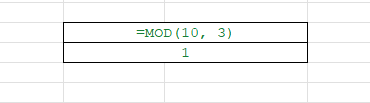
=MOD(10, 3)This divides 10 by 3. The result of 10 ÷ 3 is 3 with a remainder of 1.
✅ MOD(10, 3) returns 1
This is super helpful when you want to trigger an action at intervals, detect even/odd numbers, or group items into cycles.
Why Is MOD Useful?
MOD is deceptively powerful. It’s used for:
Alternating row formatting
Checking if a number is even or odd
Creating looping sequences
Working with calendar dates and time
Advanced formula logic in dashboards
🧪 Real-Life MOD Use Cases
1. ✅ Checking for Even or Odd Numbers
Use MOD to determine if a number is even or odd.
=IF(MOD(A2,2)=0,"Even","Odd")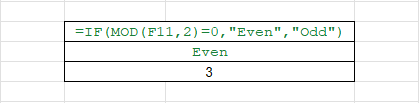
🔍 Why it’s useful: Great for analytics, organizing data, or building alternating logic in dashboards.
2. 🎨 Apply Alternating Row Colors
Want to highlight every other row in a table dynamically? Use this conditional formatting formula:
=MOD(ROW(),2)=0
This highlights even-numbered rows. To highlight odd ones, just flip the condition to =1.
3. 🕒 Find Remaining Hours or Days
Let’s say you want to know how many hours remain after dividing minutes:
=MOD(125, 60)
This gives you 5—because 125 minutes = 2 hours and 5 minutes. Combine it with INT():
=INT(125/60) & " hrs and " & MOD(125,60) & " mins"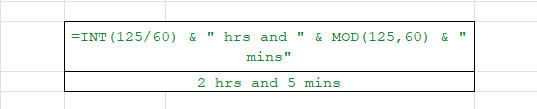
4. 📅 Recurring Date Calculations
Let’s say you’re assigning weekly shifts on a 3-week rotating schedule.
=MOD(WEEKNUM(A1),3)+1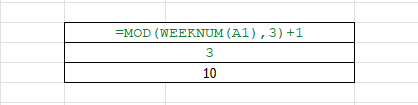
This gives you a number between 1–3, depending on the week of the year.
5. 🔁 Looping Over a Fixed Set
If you’re running a contest every 5th entry, you could use:
=IF(MOD(ROW(),5)=0,"Winner","Not Yet")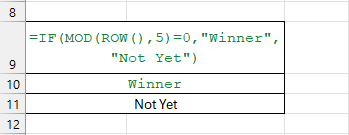
Simple. Efficient. Elegant.
Advanced MOD Function
🌈 Color Code Every Nth Cell
Want to shade every 3rd column? Apply conditional formatting with:
=MOD(COLUMN(),3)=0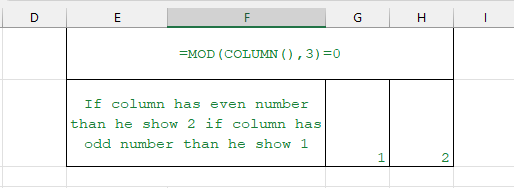
🧮 Create Sequences with Repeating Patterns
For a repeating sequence like 1, 2, 3, 1, 2, 3… Try:
=MOD(ROW()-1,3)+1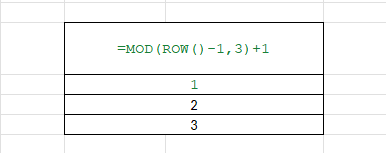
🧯 Handling Negative Numbers with MOD
Excel’s MOD handles negative numbers differently than some programming languages.
=MOD(-10,3)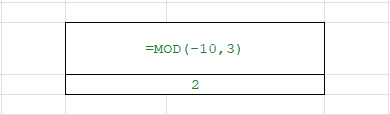
✅ Result: 2. Excel adjusts the result so that the sign of the result is the same as the divisor.
PRO TIP: MOD + IF + Conditional Formatting = Magic
ant to highlight specific patterns, like every third row, to separate data visually?
=MOD(ROW(), 3) = 0Use this formula in Conditional Formatting. It will automatically highlight rows 3, 6, 9, 12, and so on. This is perfect for report styling and visual section breaks.
MOD vs. QUOTIENT – What’s the Difference?
MOD gives the remainder
=MOD(10, 3) → 1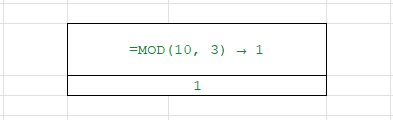
QUOTIENT gives the whole number part
=QUOTIENT(10, 3) → 3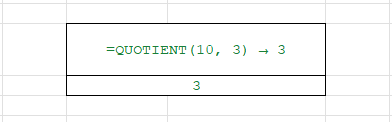
📚 Excel MOD Function Quick Reference
| Formula | Result | Explanation |
|---|---|---|
| =MOD(15,4) | 3 | 15 ÷ 4 = 3 R3 |
| =MOD(27,5) | 2 | 27 ÷ 5 = 5 R2 |
| =MOD(123,10) | 3 | Last digit of number |
| =MOD(-7, 3) | 2 | Excel keeps the sign of the divisor |
🧰 Combine MOD with Other Functions
Example: Custom Labels for Even/Odd
=IF(MOD(ROW(),2)=0,"Row B","Row A")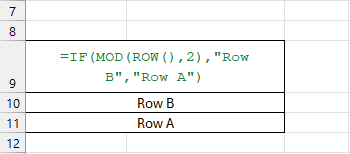
Example: Alternate Table Headers
=CHOOSE(MOD(COLUMN(),3)+1, "Alpha", "Beta", "Gamma")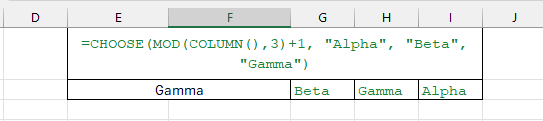
💡 Creative Use: Excel Calendar with MOD
Want to highlight weekends in a calendar?
=MOD(COLUMN()-1,7)>4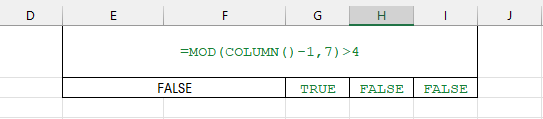
This will target Saturday (6) and Sunday (7), assuming your calendar starts on Monday.
Common Mistakes to Avoid
🚫Dividing by 0
=MOD(10, 0) returns a #DIV/0! error. Always validate your divisor.
🚫Ignoring Logic Consistency
When using IF(MOD(...)), ensure your outputs are consistent. Use =IF(MOD(A2,2)=0, "Even", "Odd") for clean data.
✅Summary: Master the MOD Function
Let’s recap. The MOD function helps you:
- Find the remainder of a division.
- Detect even/odd numbers instantly.
- Build rotation patterns (groups, days, cycles).
- Create professional “zebra” tables with conditional formatting.
Conclusion
The MOD function in Excel is more than just a math tool—it’s a smart, flexible way to handle remainders, automate logic, and enhance your spreadsheets. Whether you’re formatting tables, analyzing data, or creating schedules, MOD brings simplicity and power. Master it once, and you’ll find new ways to use it in nearly every project. In our advance excel training and classes for advanced excel, we teach how functions like MOD can transform the way you work with data.
Unlock Hidden Excel Gems!
Master functions like ABS, MOD, and Pivot Tables with our specialized
courses in Advanced Excel and Data Science.
The images, videos used in this post are for informational and educational purposes only. We do not own the rights to these images, videos and all rights remain with their respective owners.


Connect With Us
Follow us for updates on our latest courses and events!