
When you’re building smart formulas in Excel, sometimes you need to flip the script — to test if something isn’t true or to exclude specific conditions from your logic. That’s where the NOT Function in Excel steps in. Whether you’re validating data, controlling flow in an IF statement, or crafting cleaner conditional logic, NOT() lets you reverse logic with a single, powerful move.
In this vlog-style breakdown, I’ll walk you through how the NOT function works, what it’s really doing behind the scenes, and how to apply it in real-world scenarios — from decision-making models to data quality checks. It’s a small function with big impact, and once you know how to use it right, you’ll wonder how you ever handled complex logic without it.
Want to test if something is not true?
Need to exclude a specific condition?
Building a formula where a “no” means “yes”?
That’s the power of the NOT function. And the best part? As you dive deeper into Excel and advanced Excel, mastering such logical functions will sharpen your skills even further. If you’re planning to learn advanced Excel for career growth, exploring advanced Excel for data analytics, or searching for advance Excel near me courses, the NOT function is one of those essential building blocks you’ll keep coming back to.
💡 What Is the NOT Function in Excel?
The NOT function reverses the logical value of a statement.
- If something is TRUE, NOT makes it FALSE.
- If it’s FALSE, NOT turns it into TRUE.
Syntax:
excel
CopyEdit
=NOT(logical)
- logical – This is any expression that returns either TRUE or FALSE.
🧠 In Plain English
Think of NOT() as saying:
“Give me the opposite.”
🔍 Basic Example of NOT Function
Let’s say:
excel
CopyEdit
=NOT(TRUE)
✅ Returns: FALSE
excel
CopyEdit
=NOT(FALSE)
✅ Returns: TRUE
So simple, right? But powerful when used inside other formulas.
📊 Real-Life Scenarios Where NOT Is Incredibly Useful
Let’s go beyond theory and explore how the NOT function in Excel can be applied to everyday logic.
1. 🧾 Exclude Specific Data — Like “Not Approved”
Imagine you have a list of employees and their approval status:
| Name | Status |
| Alice | Approved |
| Bob | Pending |
| Carol | Rejected |
To find rows that are not approved:
excel
CopyEdit
=NOT(B2=”Approved”)
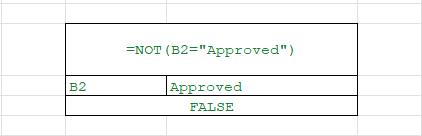
This returns:
- FALSE for “Approved”
- TRUE for everything else
Use it in filters, dashboards, or conditional formatting.
2. ✅ Reverse a Condition in IF Formula
Let’s say you want to flag rows where a condition is not met.
excel
CopyEdit
=IF(NOT(A2>100),”Under Target”,”Met Target”)
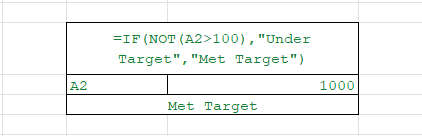
If A2 is not greater than 100, it returns “Under Target”.
3. 📆 Exclude Weekends from a Schedule
Suppose column A contains dates. You can use WEEKDAY() to detect weekends.
excel
CopyEdit
=NOT(OR(WEEKDAY(A2)=1, WEEKDAY(A2)=7))
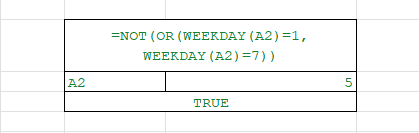
This returns:
- TRUE for weekdays (Mon–Fri)
- FALSE for Saturday (7) and Sunday (1)
4. 📍 Conditional Formatting: Highlight Non-VIPs
You want to highlight rows where the user is not a VIP:
excel
CopyEdit
=NOT(B2=”VIP”)
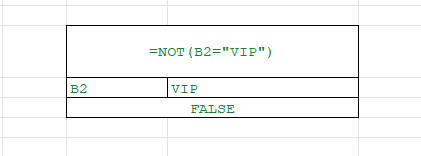
Great for styling or segmenting customer lists.
5. 🧠 Use with IS Functions
Combine NOT with ISBLANK(), ISNUMBER(), etc.
Example:
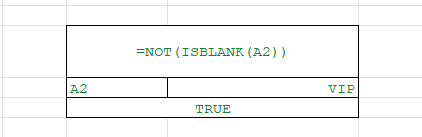
Highlight cells that are not blank:
excel
CopyEdit
=NOT(ISBLANK(A2))
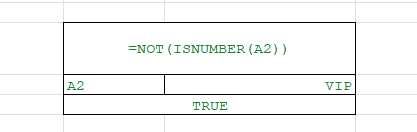
Or find cells that do not contain numbers:
excel
CopyEdit
=NOT(ISNUMBER(A2))
🧪 Combining NOT with AND / OR
This is where it gets spicy.
Exclude Records Matching Any Condition
Let’s say you’re excluding records where:
- Region = “East” or
- Sales rep = “Temporary”
Use:
excel
CopyEdit
=NOT(OR(A2=”East”, B2=”Temporary”))
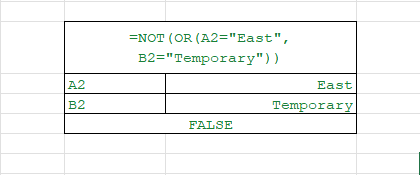
Returns TRUE only when neither condition is met.
Only Flag When All Opposites Are True
excel
CopyEdit
=NOT(AND(A2=”Active”, B2>5000))
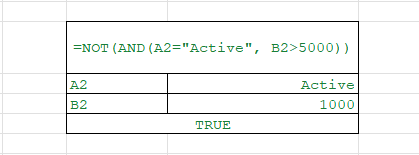
Returns TRUE when:
- The person is not active or
- Sales are not over 5000
📋 Summary Table of NOT Function Logic
| Formula | Meaning | Returns |
| =NOT(TRUE) | Reverse true | FALSE |
| =NOT(FALSE) | Reverse false | TRUE |
| =NOT(A1>100) | A1 is not greater than 100 | TRUE/FALSE |
| =IF(NOT(B2=”Yes”),”No”,”Yes”) | Flip yes/no | “No” or “Yes” |
| =NOT(AND(A2=”OK”, B2>50)) | One or both not true | TRUE/FALSE |
🔄 Use NOT in Excel Dashboards & Workflows
✅ Quality Check Example
You’re logging product QC test results. Flag any that are not passed:
excel
CopyEdit
=IF(NOT(A2=”Pass”), “Recheck”, “”)
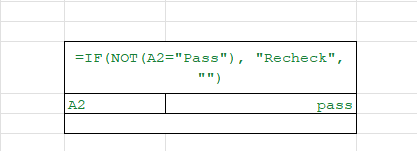
Automates alerting in your quality control system.
📈 Inventory Management
Only show products that are not out of stock:
excel
CopyEdit
=NOT(B2=”Out of Stock”)
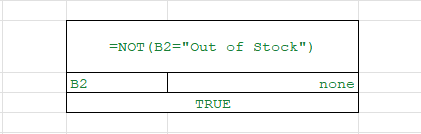
Pairs well with filters and pivot tables.
🔁 Reverse Logic in Dropdowns
If a dropdown value is not selected, show a message:
excel
CopyEdit
=IF(NOT(ISNUMBER(MATCH(A2,List,0))),”Invalid Selection”,””)
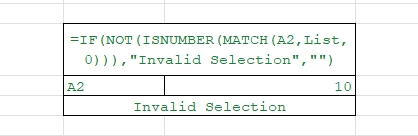
Great for validation.
⚠️ Common Mistakes with NOT
❌ Trying to NOT a Text Directly
excel
CopyEdit
=NOT(“Apple”) → ❌ Error
NOT() expects TRUE or FALSE, not just any value.
Fix:
excel
CopyEdit
=NOT(A2=”Apple”) → ✅
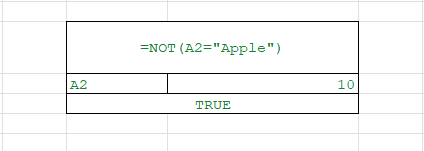
❌ Forgetting Logical Test Inside
excel
CopyEdit
=NOT(A2) → ❌ Wrong
What are you testing? Always pair NOT() with a logical statement like =, >, <, etc.
🧩 Pro Tips for Using NOT in Excel
🔁 Double Negatives
Want to convert TRUE/FALSE to 1/0? Use:
excel
CopyEdit
=–NOT(condition)
🧮 Use with COUNTIF for Rejections
Highlight customers not in a allowlist:
excel
CopyEdit
=NOT(COUNTIF(allowlist,A2))
Returns TRUE if the name is not in your approved list.
📌 Final Thoughts
The NOT function in Excel is your go-to for reversing logic and excluding data. It’s the quiet hero behind conditional formulas, smart dashboards, and validation rules. When combined with functions like AND, OR, IF, or ISBLANK, you can flip logic exactly how you need it — without messy workarounds.
Once you get in the habit of using NOT(), you’ll wonder how you ever built Excel logic without it.
🔚 Conclusion
The NOT() function might be one of the simplest tools in Excel’s logic arsenal, but its impact is huge. It allows you to write smarter, more flexible formulas by handling exceptions, reversing conditions, and giving your logic a clean, readable structure. Whether you’re troubleshooting formulas or building dynamic dashboards, mastering NOT() gives you more control over how your data responds. Start using it, and you’ll instantly feel the difference in how your spreadsheets think.
Summary
The NOT function in Excel may look simple, but it’s a hidden powerhouse for smarter formulas. It flips logic — turning TRUE into FALSE and FALSE into TRUE — making it perfect when you need to test if something isn’t true or exclude conditions from your data.
✨ Why use the NOT function?
- ✅ Clean up messy datasets with ease
- 📊 Exclude “Not Approved” or unwanted records
- 📆 Skip weekends in schedules
- 🎯 Flag items that don’t meet targets
- 🧾 Highlight cells that are not blank or not VIP
By combining NOT() with functions like AND, OR, IF, ISBLANK, and COUNTIF, you can create dashboards, automate reports, and build flexible formulas that make your spreadsheets more dynamic and error-free.
💡 Example:
=IF(NOT(A2=”Pass”),”Recheck”,””) → Flags items that fail quality tests.
📌 Whether you’re into financial models, forecasting, inventory management, or business analytics, the NOT function is your quiet logic hero.
🚀 To go further, you’ll want to learn advanced Excel and sharpen your skills. From excel and advance excel basics to advanced Excel for data analytics, mastering logical functions like NOT is essential. If you’re searching for advance Excel near me courses, or want structured programs that help you learn Excel from basic to advanced, this function will be one of your most valuable building blocks.
The more you explore, the more you’ll realize: spreadsheets think smarter when you use NOT(). 🔑
OUR BRANCHES
G-40, Nav Mangalam Complex, opp. Agersen Bhavan, City Light
G-48-B, J9 high street, Vesu Canal Rd, Vesu
115, Raj Victoria complex, Pal

