
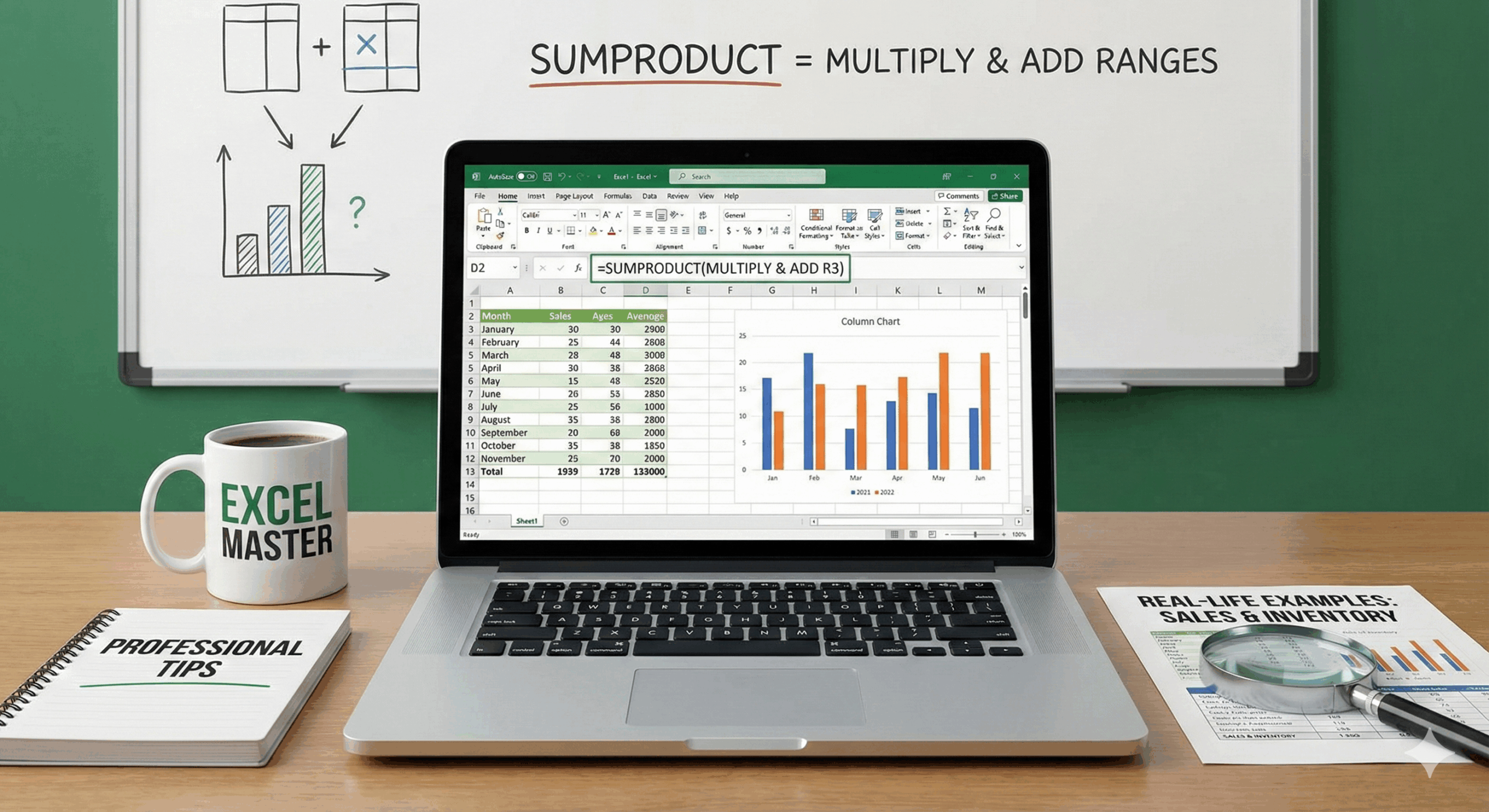
If you’ve ever had to multiply two columns in Excel—like price × quantity—and then total them up, chances are you did it manually using a helper column. However, fortunately, Excel offers a much smarter way. The SUMPRODUCT Function lets you perform paired multiplication and summation in a single formula — no extra columns, no clutter, no drama. It’s a must-know tool for advanced excel for accounting and finance, excel advanced for data analysis, and anyone aiming for the best advanced excel training.
Widely used in advanced excel for accounting and finance, SUMPRODUCT is one of Excel’s most powerful yet underutilized tools. It multiplies corresponding values across arrays and instantly returns the total, making it perfect for weighted averages, payroll calculations, cost analysis, and performance scoring. Therefore, if you’re aiming to master Excel advanced for data analysis or are searching for the best advanced Excel training, By learning SUMPRODUCT, you will, without a doubt, significantly elevate how efficiently and professionally you work with data. Furthermore, let’s break it down step by step—simple, clean, and practical
🤔 What Does SUMPRODUCT Actually Do?
Here’s the technical version:
=SUMPRODUCT(array1, array2, ...)✅ It multiplies each item in array1 by the corresponding item in array2
✅ Then it adds all the resulting products together
That’s it.
But let’s make this real.
🛒 Real-Life Example: Total Sales Calculation
Imagine this table:
| A (Product) | B (Quantity Sold) | C (Unit Price) |
| T-Shirt | 100 | 10 |
| Hoodie | 60 | 25 |
| Cap | 200 | 5 |
Now, to calculate the total revenue, you’d usually do:
=B2*C2 + B3*C3 + B4*C4But with SUMPRODUCT, it becomes a breeze:
=SUMPRODUCT(B2:B4, C2:C4)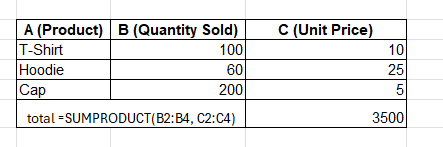
✅ This multiplies:
- 100 * 10 = 1000
- 60 * 25 = 1500
- 200 * 5 = 1000
Then adds them up:
👉 1000 + 1500 + 1000 = 3500
🎯 Final result = $3,500
💡 Why Use SUMPRODUCT Over Helper Columns?
You could just add a “Total” column with a formula like =B2*C2 and sum that. But…
- That adds clutter
- It increases file size (especially in big sheets)
- It breaks if copied or moved incorrectly
- It’s just… extra work
SUMPRODUCT is cleaner, faster, and scalable.
✅ Basic SUMPRODUCT Syntax
=SUMPRODUCT(array1, array2)Both arrays must be the same size, or Excel will return a #VALUE! error.
Each pair (A1 and B1, A2 and B2…) gets multiplied, and all results are summed.
🧑💼 Real-Life Scenario 2: Weighted Average Score
Let’s say a student has these grades:
| A (Assignment) | B (Score) | C (Weight %) |
| Homework | 85 | 10% |
| Project | 92 | 30% |
| Midterm | 78 | 20% |
| Final Exam | 88 | 40% |
You want to calculate the weighted average score.
Here’s the formula:
=SUMPRODUCT(B2:B5, C2:C5)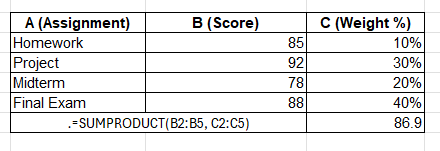
Importantly, make sure the weights are correctly assigned as either:
- In decimal format (0.1, 0.3, 0.2, 0.4), or
- Divided by 100 inside the formula:
=SUMPRODUCT(B2:B5, C2:C5)/100💡 Result = Weighted score based on importance of each test.
🔄 Pro Tip: Use — or *1 for Logical Filtering
That said, what if you need to sum only specific rows, for example, those within a particular category?
Example:
| A (Item) | B (Quantity) | C (Price) | D (Category) |
| T-Shirt | 100 | 10 | Clothing |
| Hoodie | 60 | 25 | Clothing |
| Mug | 80 | 8 | Accessories |
Now, let’s say you only want to sum revenue from “Clothing”.
Classic SUMPRODUCT with condition:
=SUMPRODUCT((D2:D4="Clothing") * B2:B4 * C2:C4)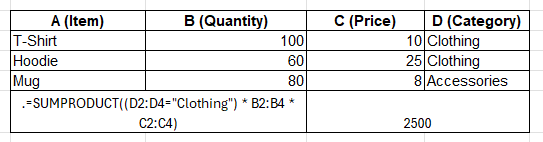
Here’s what happens:
- (D2:D4=”Clothing”) → returns {TRUE; TRUE; FALSE}
- Multiplying that by the other arrays converts TRUE to 1 and FALSE to 0
- Therefore, because of the specified criteria, only rows meeting the defined conditions are included in the multiplication and summation process.
🎯 Result: 100*10 + 60*25 = 1000 + 1500 = 2500
✨ Even More Powerful: Multiple Conditions
Want to filter by category AND price > 10?
=SUMPRODUCT((D2:D4="Clothing") * (C2:C4>10) * B2:B4 * C2:C4)You can layer in as many conditions as you want. Just wrap them in parentheses and multiply.
Essentially, SUMPRODUCT acts as a high-performance IF filter embedded within Excel calculations, streamlining complex analysis.
⚠️ Common Mistakes & How to Avoid Them
1. ❌ Mismatched Array Sizes
=SUMPRODUCT(A1:A3, B1:B4)🔴 Will return #VALUE! because the ranges aren’t the same size.
✅ Fix it by ensuring equal-length arrays:
=SUMPRODUCT(A1:A4, B1:B4)2. ❌ Using percentages without converting
If your weights are written as 10%, 20%, etc., you’re good.
But if they’re 10, 20, 30, you need to divide:
=SUMPRODUCT(scores, weights)/1003. ❌ Forgetting to convert TRUE/FALSE for logic filters
If you’re not multiplying conditions (*), your logic test won’t work.
✅ Always write:
=(Condition1) * (Condition2)Not +, not IF, just clean multiplication.
🔍 SUMPRODUCT vs. Other Functions
| Function | Best For |
| SUMPRODUCT() | Multiplying and summing ranges in one go |
| SUMIFS() | Summing based on multiple conditions |
| ARRAYFORMULA() (Google Sheets) | Similar to SUMPRODUCT but for web |
| INDEX-MATCH | Lookup operations, not multiplication |
| FILTER + SUM | Newer Excel alternative, more readable |
Still, when it comes to weighted calculations and combined conditional logic, the SUMPRODUCT function continues to reign supreme among Excel formulas.
🛠 DIY Dashboard Use Case: Revenue by Dynamic Category
Set up:
- Dropdown in G1 to select a category
- Table in A2:D10 with your sales data
Formula:
=SUMPRODUCT((D2:D10=G1)*B2:B10*C2:C10)Now, your dashboard shows revenue filtered by selected category — instantly.
🔁 Change G1 to “Accessories”, and the number updates live. No pivot tables needed.
📥 Summary: Your SUMPRODUCT Toolbox
✅ Basic multiplication + sum:
=SUMPRODUCT(A1:A3, B1:B3)✅ Weighted average:
=SUMPRODUCT(scores, weights)✅ Conditional sum:
=SUMPRODUCT((condition_range="X")*range1*range2)✅ Multi-criteria:
=SUMPRODUCT((cond1)*(cond2)*val1*val2)🏁 Final Word: SUMPRODUCT Is the Unsung Hero of Excel
If you’ve ever thought, “I wish I could multiply two columns only when something else is true,” then, this is exactly the function you need Moreover, SUMPRODUCT is fast, scalable, and clean; therefore, it’s ideal for tracking orders, forecasting sales, grading students, and ultimately, building interactive dashboards.
Once you master this, your Excel game jumps from good to God-tier. 💯
📘 Want the Sample Workbook?
Drop a message and I’ll send you a downloadable .xlsx file with:
- Sales tracker
- Weighted grade calculator
- Dynamic dashboard example
- Clean, color-coded formulas
Need this blog SEO-optimized using RankMath Pro?
I can deliver:
- Focus keyword: how to use SUMPRODUCT in Excel
- Meta title + description
- Slug suggestion
- Schema FAQ
- Internal link plan
- Optimization to hit 100/100 SEO score
Let me know, and let’s get this post ranking. 📈
Conclusion
SUMPRODUCT is one of the most powerful and underrated Excel tools for serious data work. The SUMPRODUCT Function lets you calculate total sales, weighted averages, and conditional sums in a single, clean formula — making it a favorite in advanced excel for accounting and finance and excel advanced for data analysis.
No helper columns.
No clutter.
Just smart, efficient Excel.
Therefore, to begin with, mastering the SUMPRODUCT function is essential because it enables sharper models and faster analysis; as a result, if you’re planning to enroll in the best advanced Excel training, you can ultimately elevate your spreadsheet skills instantly 💪📊
Find Our Locations
Visit any of our three convenient branches or contact us directly.
Pal Branch
Address: 115, Raj Victoria Complex, Pal Gam Circle, Pal.
Phone: +91-9825771641
Turn Negatives Into Productivity!
Master functions like ABS, MOD, and Pivot Tables with our specialized
courses in Advanced Excel and Data Science.

