
These logical operators are deceptively simple but incredibly powerful when it comes to building smarter, condition-based formulas. Whether you’re validating data, controlling outputs, or setting up dynamic automation, understanding how AND and OR work can transform the way your spreadsheets behave. Learn advanced excel course offline in Surat.
In this guide, I’ll walk you through exactly how to use the AND() and OR() functions in Excel, with step-by-step examples, real-world use cases, and pro-level tips to help you avoid common mistakes. From conditional formatting to building complex IF statements, mastering these logic functions is key to unlocking Excel’s full potential. Let’s break it down together — and level up your formula game.
🧠 What Are AND and OR Functions in Excel?
Both AND and OR are part of Excel’s logical function family, and they help you determine TRUE or FALSE based on one or more conditions.
✅ AND Function in Excel
The AND function returns TRUE only if all conditions are true.
If even one condition is false, it returns FALSE.
Syntax:
excel
CopyEdit
=AND(logical1, [logical2], …)
✅ OR Function in Excel
The OR function returns TRUE if any condition is true.
It only returns FALSE if all conditions are false.
Syntax:
excel
CopyEdit
=OR(logical1, [logical2], …)
📊 Real-Life Use Cases for AND & OR Functions
Let’s go beyond the definitions and see how these actually solve real-world business problems.
1. 🎓 Student Grading Logic
Let’s say you’re marking students. To pass:
- Score must be greater than 50
- Attendance must be above 80%
You can use:
excel
CopyEdit
=AND(B2>50, C2>80)
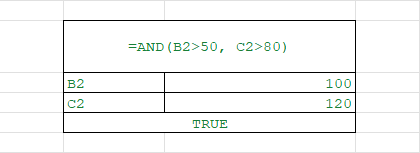
Returns TRUE only when both conditions are met.
2. 🛒 Discount Eligibility Logic
Imagine you’re managing an e-commerce store. A discount is available if:
- Total purchase is over $100 OR
- The customer is a VIP
Use:
excel
CopyEdit
=OR(A2>100, B2=”VIP”)
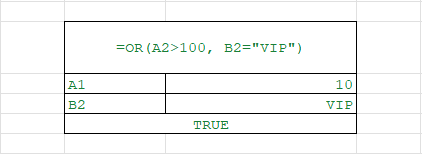
Returns TRUE if either condition is met.
3. ✅ Combine with IF for Actions
excel
CopyEdit
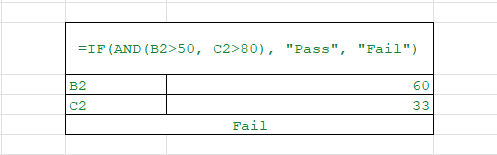
=IF(AND(B2>50, C2>80), “Pass”, “Fail”)
excel
CopyEdit
=IF(OR(A2>100, B2=”VIP”), “Eligible”, “Not Eligible”)
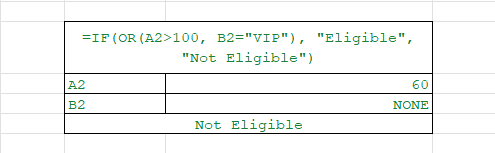
Using IF with AND or OR allows you to return custom responses based on logic.
🧪 Excel Examples — Visual Breakdown
| Name | Score | Attendance | Result Formula | Output |
| Alice | 65 | 90% | =AND(B2>50, C2>80) | TRUE |
| Bob | 45 | 85% | =AND(B3>50, C3>80) | FALSE |
| Carol | 55 | 78% | =AND(B4>50, C4>80) | FALSE |
| Dave | 52 | 82% | =IF(AND(B5>50,C5>80),”Pass”,”Fail”) | Pass |
🤝 Using AND & OR Together
You can nest OR inside AND, or vice versa, to build complex logic.
Scenario: Product Returns
Customer is allowed to return a product if:
- It’s within 30 days AND
- The product is unopened OR not damaged
Here’s how:
excel
CopyEdit
=AND(A2<=30, OR(B2=”Unopened”, C2=”Not Damaged”))
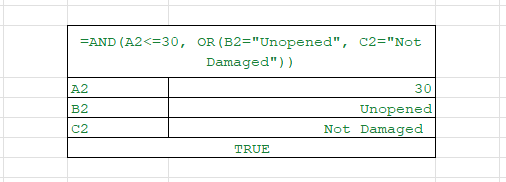
Excel will return TRUE only if the product is within return window AND at least one condition on the product’s condition is met.
⚙️ Combine with Other Functions for Power Logic
| Use Case | Formula |
| Multiple pass criteria | =IF(AND(A2>=60,B2=”Completed”),”Pass”,”Fail”) |
| High priority filter | =IF(OR(A2=”Urgent”,B2=”Overdue”),”Flag”,”OK”) |
| Bonus eligibility | =IF(AND(A2>100000,B2=”Full-Time”),”Yes”,”No”) |
🔁 Use in Conditional Formatting
Highlight a row if both sales and profit exceed targets:
excel
CopyEdit
=AND($B2>10000, $C2>2000)
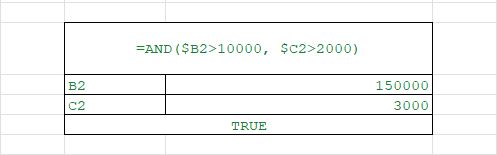
Or highlight rows where either is low:
excel
CopyEdit
=OR($B2<5000, $C2<1000)
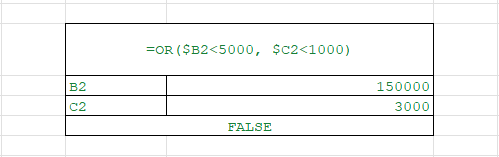
These are perfect for dashboards and analytics.
🧯 Common Pitfalls to Avoid
❌ Forgetting Logical Format
You must test conditions, not just write values:
excel
CopyEdit
=AND(A2,B2) → ❌ WRONG
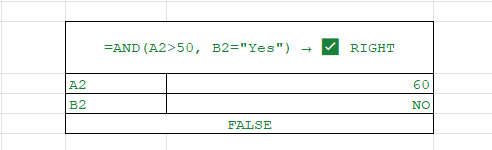
=AND(A2>50, B2=”Yes”) → ✅ RIGHT
❌ Nesting Without Brackets
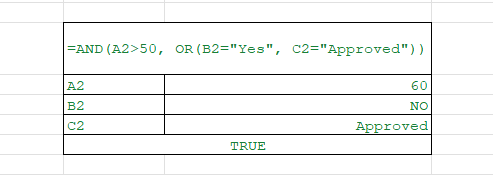
When combining AND & OR, always wrap them cleanly:
excel
CopyEdit
=AND(A2>50, OR(B2=”Yes”, C2=”Approved”)) → ✅
❌ Mixing Text with Numbers
Excel is strict — “80” is text, while 80 is a number. Always match types in your logic.
💼 Business Case Examples
📈 Sales Team Bonus Logic
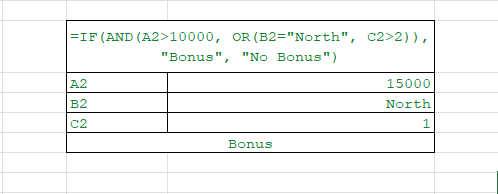
- Bonus applies only if:
- Sales > $10,000
- AND either region is “North” OR tenure > 2 years
- Sales > $10,000
excel
CopyEdit
=IF(AND(A2>10000, OR(B2=”North”, C2>2)), “Bonus”, “No Bonus”)
🏢 HR: Leave Approval Conditions
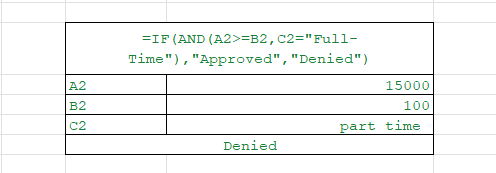
- Leave is approved if:
- Leave balance ≥ requested days
- AND employee is Full-Time
- Leave balance ≥ requested days
excel
CopyEdit
=IF(AND(A2>=B2,C2=”Full-Time”),”Approved”,”Denied”)
📌 Recap: When to Use AND vs OR
| Use Case | Use Function |
| All conditions must be true | AND |
| At least one condition must be true | OR |
| Multiple IF conditions | Combine IF with AND/OR |
| Multiple logical paths | Nest OR in AND or vice versa |
📋 Quick Syntax Recap
| Function | Syntax | Returns |
| AND | =AND(condition1, condition2) | TRUE if all are TRUE |
| OR | =OR(condition1, condition2) | TRUE if any is TRUE |
| IF + AND | =IF(AND(…), result1, result2) | Based on multiple true conditions |
| IF + OR | =IF(OR(…), result1, result2) | Based on any true condition |
🔚 Conclusion
The AND and OR functions in Excel are essential tools for handling multiple logical tests in one formula. Whether you’re working in HR, finance, operations, or sales — building smart logic into your spreadsheets helps automate decisions, validate data, and enhance your reports.
Once you understand how to combine AND/OR with IF, IFERROR, VLOOKUP, and even conditional formatting — you’re no longer just using Excel. You’re commanding it. Best advanced excel course offline in Surat
Summary
The AND and OR functions in Excel are powerful logical tools that help you build smarter, condition-based formulas. They return TRUE or FALSE depending on whether conditions are met, and when combined with IF, they enable automation, validation, and dynamic reporting.
✅ AND Function: Returns TRUE only if all conditions are true. Example: =AND(B2>50, C2>80) checks if a student passes both score and attendance criteria.
✅ OR Function: Returns TRUE if at least one condition is true. Example: =OR(A2>100, B2="VIP") checks discount eligibility.
👉 Real-world applications include:
- Student grading logic
- E-commerce discount checks
- HR leave approvals (
=IF(AND(A2>=B2,C2="Full-Time"),"Approved","Denied")) - Sales team bonus conditions (
=IF(AND(A2>10000, OR(B2="North",C2>2)),"Bonus","No Bonus"))
💡 Advanced Uses:
- Combine AND/OR with conditional formatting for highlighting values.
- Nest functions for complex logic, e.g., return policies:
=AND(A2<=30, OR(B2="Unopened",C2="Not Damaged")). - Use with other functions for automation in dashboards and analytics.
⚠️ Common mistakes: Forgetting logical operators (=AND(A2,B2) ❌), mixing text with numbers, or misplacing brackets when nesting.
📌 Key takeaway: Use AND when all conditions must be true, OR when any one is enough. Mastering them unlocks advanced formula control in HR, finance, operations, and sales.
OUR BRANCHES
G-40, Nav Mangalam Complex, opp. Agersen Bhavan, City Light
G-48-B, J9 high street, Vesu Canal Rd, Vesu
115, Raj Victoria complex, Pal

