
Struggling with Excel errors like #DIV/0!, #N/A, or #VALUE! popping up in your formulas? You’re not alone. These common mistakes can ruin dashboards, disrupt workflows, and leave your data looking messy. But there’s a simple fix — meet the IFERROR function in Excel. In our training sessions, we break down how IFERROR works, how to use it effectively, and show you real-life examples to clean up your formulas like a pro.
From spreadsheet disasters to polished dashboards, IFERROR is your go-to tool to keep formulas clean and user-friendly. Whether you’re a data analyst, student, BI business analyst, or small business owner managing budgets, this Excel trick best way to learn advanced excel saves time and avoids confusion. If you’re ready to go beyond basics, join our course — from the complete Excel course beginner to expert to advanced Excel and SQL courses. It’s the best way to learn advanced Excel and gain the skills needed for professional growth.
💡 What Is the IFERROR Function?
The IFERROR function lets you catch and handle errors in Excel formulas.
Instead of letting an error break your flow, IFERROR allows you to:
- Show a custom message
- Display a zero or blank cell
- Or even run an alternate formula
📘 Syntax:
excel
CopyEdit
=IFERROR(value, value_if_error)
- value – the formula or expression to evaluate
- value_if_error – the result to return if there’s an error
✅ If there’s no error, Excel returns the original result.
❌ If there is an error, it returns your custom fallback.
🔍 Example:
excel
CopyEdit
=IFERROR(A1/B1, “Error Detected”)
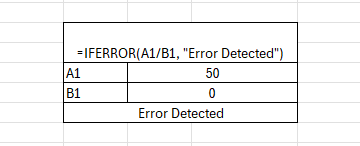
- If B1 ≠ 0, it returns the result of A1/B1
- If B1 = 0, it returns: “Error Detected”
🎯 Why Use IFERROR?
Errors like #DIV/0!, #N/A, #REF!, or #VALUE!:
- Disrupt your calculations
- Break formulas
- Confuse end users
- Wreck dashboards and reports
The IFERROR function makes sure your spreadsheet keeps flowing, even when data misbehaves.
🧪 Real-Life Use Cases of IFERROR Function in Excel
Let’s dive into the real, practical, everyday ways you can use IFERROR.
1. 🔢 Division by Zero Fix
You’re calculating profit margin:
excel
CopyEdit
=Revenue/Cost
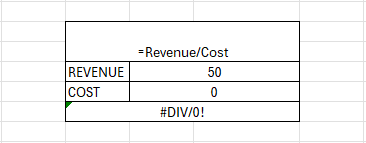
But if Cost is zero, you get #DIV/0!.
Fix it:
excel
CopyEdit
=IFERROR(A2/B2, “N/A”)
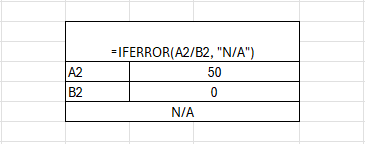
You can also return a 0, a blank “”, or even another formula.
2. 🔍 VLOOKUP That Might Not Find a Match
You’re pulling product prices with VLOOKUP.
excel
CopyEdit
=VLOOKUP(A2, Products!A:B, 2, FALSE)
If the product doesn’t exist, you get #N/A.
Wrap it:
excel
CopyEdit
=IFERROR(VLOOKUP(A2, Products!A:B, 2, FALSE), “Not Found”)
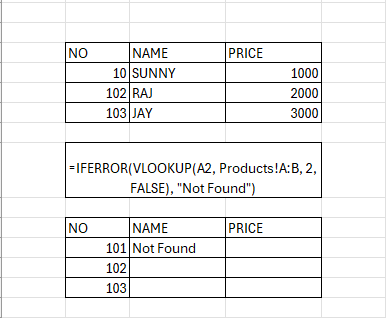
Professional. Clean. User-friendly.
3. 📈 Show Empty Cell Instead of Error
Let’s say you want a blank instead of an error:
excel
CopyEdit
=IFERROR(A2/B2, “”)
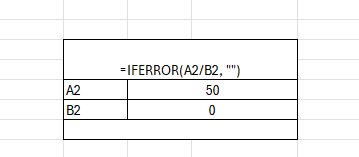
Useful for:
- Dashboards
- Financial models
- Client-facing reports
4. ✅ Alternate Formula on Error
What if you want to try a second lookup?
excel
CopyEdit
=IFERROR(VLOOKUP(A2, Table1, 2, FALSE), VLOOKUP(A2, Table2, 2, FALSE))
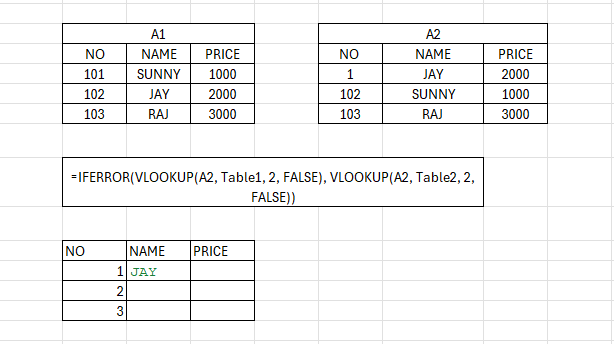
Smart failover = no dead ends.
5. 📆 Date Logic with Error Catching
Using DATEDIF to calculate age:
excel
CopyEdit
=DATEDIF(A2, TODAY(), “Y”)
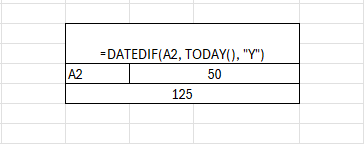
If A2 is blank or wrong format — boom: error.
Handle it:
excel
CopyEdit
=IFERROR(DATEDIF(A2, TODAY(), “Y”), “”)
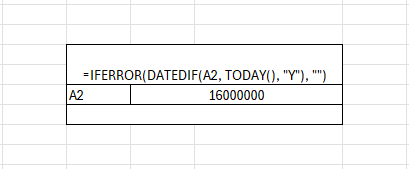
Now it looks neat and still works.
6. 📚 Data Import Cleanup
Imported data often has missing links, formulas, or references. Wrap them with IFERROR:
excel
CopyEdit
=IFERROR(A2*B2, 0)
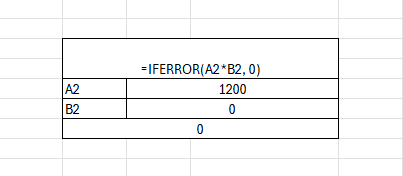
It keeps totals clean even if values are missing.
🧠 How IFERROR Differs from ISERROR or IF(ISERROR())
Before Excel 2007, people used:
excel
CopyEdit
=IF(ISERROR(A1/B1), “Error”, A1/B1)
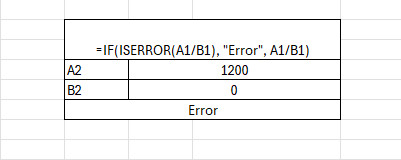
Still works — but messy and calculates the formula twice.
With IFERROR, you simplify:
excel
CopyEdit
=IFERROR(A1/B1, “Error”)
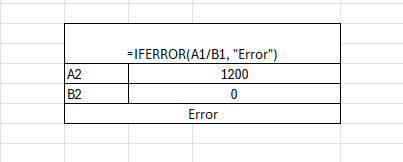
✅ Cleaner
✅ Faster
✅ More readable
⚠️ Common Errors IFERROR Can Handle
| Error Code | Meaning |
| #DIV/0! | Division by zero |
| #N/A | Value not available |
| #VALUE! | Wrong type of argument |
| #REF! | Invalid cell reference |
| #NAME? | Unrecognized text in formula |
| #NULL! | Invalid intersection of ranges |
📌 Summary Table: IFERROR Formula Examples
| Situation | Formula | Returns |
| Division | =IFERROR(A2/B2,”Error”) | Quotient or “Error” |
| Lookup | =IFERROR(VLOOKUP(A2,Products!A:B,2,FALSE),”Not Found”) | Price or “Not Found” |
| Calculation fallback | =IFERROR(A2*C2,0) | Product or 0 |
| Blank if error | =IFERROR(A2/B2,””) | Result or blank |
| Alternate lookup | =IFERROR(VLOOKUP(A2,Table1,2,FALSE),VLOOKUP(A2,Table2,2,FALSE)) | Value from either |
📈 Dashboards & Reports: Why IFERROR Is a Must
Excel dashboards break when errors show up. IFERROR helps:
- Keep visuals clean
- Prevent broken calculations
- Avoid error chains through linked sheets
- Display fallback values
Example: KPI Dashboard
excel
CopyEdit
=IFERROR((Actual/Target)-1, “”)
Now your performance indicators never show #DIV/0!, even when data is incomplete.
🧯 Common Mistakes with IFERROR
❌ Using IFERROR Too Broadly
excel
CopyEdit
=IFERROR(YourEntireSheetHere, 0)
Don’t hide real errors without understanding them. Use it intentionally.
❌ Ignoring Data Quality
IFERROR isn’t a bandage for bad data. Always investigate:
- Why is there an error?
- Should that cell even be blank or invalid?
❌ Returning Wrong Data Type
If you expect a number but return text like “N/A”, it can mess with later formulas.
Prefer “” or 0 for numeric formulas.
🧩 Pro Tip: Use with TEXT for Display Logic
Show a user-friendly message:
excel
CopyEdit
=IFERROR(“Total: $” & A1/B1, “Check your input”)
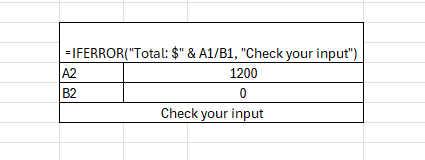
Mixes logic and messaging — great for client reports or user tools.
🔚 Conclusion
The IFERROR function in Excel is a powerful tool for creating clean, user-friendly, and error-free spreadsheets. Whether you’re managing financial models, dashboards, or lookup formulas, IFERROR ensures your data stays professional and easy to read by controlling the outcome of unexpected errors. Mastering this function is a key step in every complete Excel course beginner to expert and is further explored in advanced Excel and SQL courses designed for professionals. If you’re looking for the best way to learn advanced Excel and apply it in real-world scenarios, IFERROR is an essential skill. It’s especially valuable for a BI business analyst who needs reliable, accurate results to make smarter business decisions.
Summary
Struggling with Excel errors like #DIV/0!, #N/A, or #VALUE!? Don’t worry — the IFERROR function in Excel is here to save the day. It’s a simple but powerful way to clean up formulas, keep dashboards neat, and make your reports look professional.
✨ Why IFERROR is a game-changer:
- 🛡️ Catches errors like #DIV/0!, #N/A, #REF!, #VALUE!
- 📊 Keeps dashboards and KPIs clean and user-friendly
- ⚡ Faster and simpler than old IF(ISERROR()) formulas
- 🧩 Lets you show custom messages, blank cells, or alternate formulas
🔍 Real-life use cases:
- 🔢 Division by zero fix → return “N/A” or 0 instead of errors
- 📈 Cleaner dashboards → replace errors with blanks for visuals
- 🔍 Smarter lookups → show “Not Found” when VLOOKUP fails
- 📚 Data imports → handle missing or broken values automatically
- 📆 Date logic → stop age or timeline formulas from breaking
🎯 Who needs it?
- Students learning Excel basics
- Professionals managing reports and financial models
- BI business analysts relying on error-free dashboards
- Anyone aiming to build smarter, reliable spreadsheets
📘 Learning path:
- Start with our complete Excel course beginner to expert
- Go deeper with advanced Excel and SQL courses
- Discover the best way to learn advanced Excel for real-world analytics and automation
👉 The IFERROR function isn’t just about hiding mistakes — it’s about building clean, professional, and powerful spreadsheets that always deliver clarity.
FOLLOW US :

