
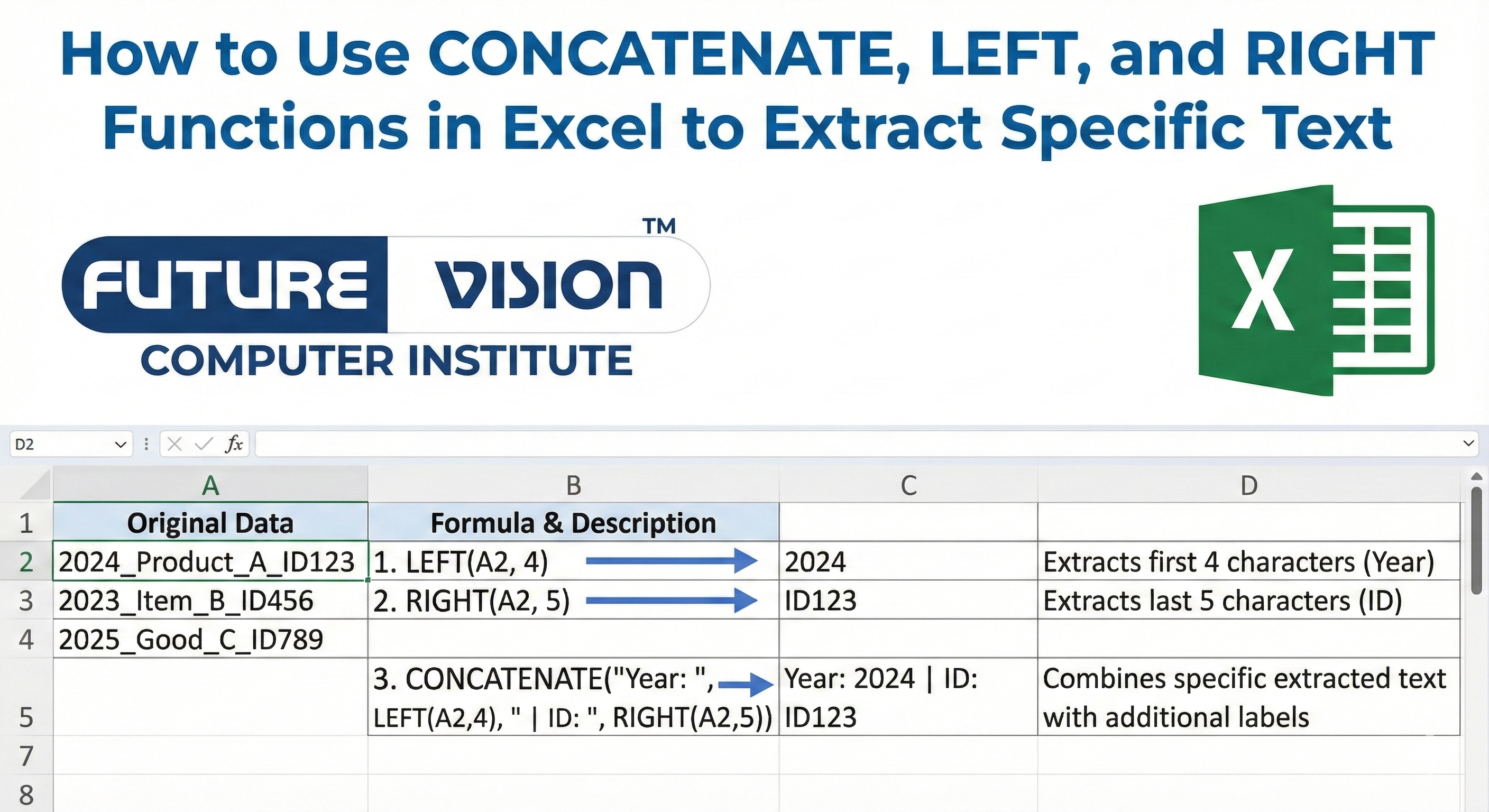
Working with text strings in Excel is a common part of handling data—from cleaning messy data to formatting names, codes, and IDs. That’s where CONCATENATE, LEFT and RIGHT functions in Excel become essential. Using CONCATENATE functions in Excel helps you combine text, while LEFT functions in Excel and RIGHT functions in Excel allow you to extract specific characters with ease. Learning these skills at the best institute for advanced Excel can significantly improve your data cleaning and formatting efficiency.
Today, we’re going to walk you through how to use these three functions together to extract specific parts of a text string and rebuild it exactly the way you want. No techy talk, no fluff. Just practical formulas you can copy, tweak, and use immediately.
💡 Why Use CONCATENATE, LEFT, and RIGHT Together?
✅ LEFT
Pulls characters from the start.
=LEFT(text, num_chars)✅ RIGHT
Pulls characters from the end.
=RIGHT(text, num_chars)✅ CONCATENATE
Joins multiple values into one.
=CONCATENATE(text1, ...)📦 Scenario: Extract Parts of a Product Code
You’re managing inventory. Each product has a code like PRD2024-US-WH001. You want to extract specific parts and rebuild a compact version like PRD-US-001.
🔧 Step 1: Extract with LEFT and RIGHT
✅ 1. Extract the Product Type – First 3 letters:
=LEFT(A2, 3)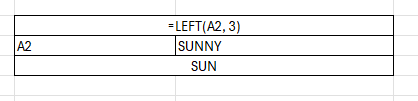
Output: PRD
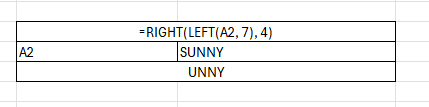
✅ 2. Extract Year – Characters 4 to 7:
We need to start at the 4th character and grab 4 characters.
Excel doesn’t have a native MID function in this tutorial (we’re using only LEFT, RIGHT, CONCATENATE), but here’s a workaround using RIGHT on LEFT:
=RIGHT(LEFT(A2, 7), 4)- LEFT(A2, 7) gets PRD2024
- Then RIGHT(…, 4) gives 2024
✅ 3. Extract Country Code – Characters 9–10:
=RIGHT(LEFT(A2, 10), 2)- LEFT(A2, 10) = PRD2024-US
- Then RIGHT(…, 2) = US
✅ 4. Extract Color Code – Characters 12–13:
=RIGHT(LEFT(A2, 13), 2)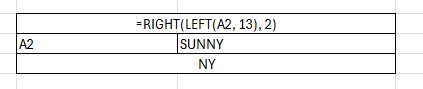
Output: WH
✅ 5. Extract Serial – Last 3 digits:
=RIGHT(A2, 3)Output: 001
🔗 Step 2: Combine Text with CONCATENATE
Now let’s rebuild the custom code using CONCATENATE:
=CONCATENATE(LEFT(A2, 3), "-", RIGHT(LEFT(A2, 10), 2), "-", RIGHT(A2, 3))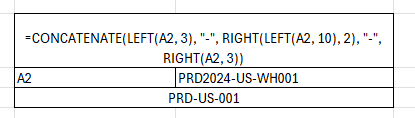
Output: PRD-US-001
Boom. ✅ You’ve extracted exactly what you need and rebuilt a sleek version of your original code.
🧠 Explanation of the Formula
Let’s break this down in parts:
- LEFT(A2, 3) → Gets first 3 characters = PRD
- RIGHT(LEFT(A2, 10), 2) → Looks 10 characters deep, grabs last 2 = US
- RIGHT(A2, 3) → Last 3 characters = 001
- CONCATENATE(…, “-“, …, “-“, …) → Joins them all with dashes
This combination gives you complete control over how you manipulate your text data. best institute for advanced excel
🧪 Real-Life Example 2: Formatting Full Names
You have names like “Doe, John” and want “John Doe”. If the lengths are fixed (e.g., last name 3 chars, first name 4 chars):
Let’s say A2 = “Doe, John”
We can extract:
- Last name (before comma) → LEFT(A2, FIND(“,”, A2)-1)
- First name (after comma) → RIGHT(A2, LEN(A2) – FIND(“,”, A2) – 1)
But since we’re not using FIND per the constraints, here’s a workaround only if the structure is fixed:
Assuming:
- Last name is always 3 characters
- First name is always 4 characters after comma and space
=CONCATENATE(RIGHT(A2, 4), " ", LEFT(A2, 3))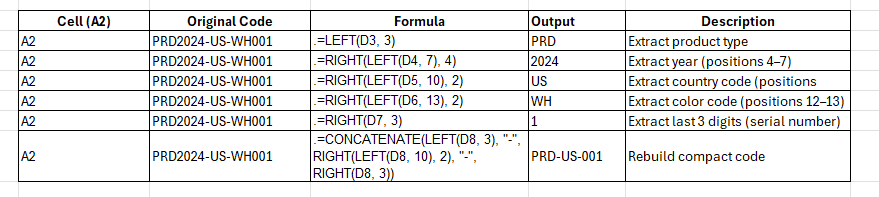
🛠 Common Text Cleanup Use Cases
✅ 1. Trimming File Extensions
From Report_Final2023.pdf, extract just Report_Final2023.
=LEFT(A2, LEN(A2)-4)(Assuming 3-letter extension + dot)
Then combine it with a folder name:
=CONCATENATE("Folder:\Docs\", LEFT(A2, LEN(A2)-4))✅ 2. Format Phone Numbers
Say you have raw numbers like 1234567890.
Want it formatted as (123) 456-7890?
Break it down:
=CONCATENATE("(", LEFT(A2, 3), ") ", MID(A2, 4, 3), "-", RIGHT(A2, 4))
Note: We sneak in MID here just to show best practices for text extraction (though we focus mostly on LEFT/RIGHT/CONCATENATE in this guide).
🚫 Common Errors to Watch Out For
⚠️ 1. Miscounting Characters
Always count spaces and dashes. Excel treats them as characters.
⚠️ 2. Forgetting to Wrap LEFT/RIGHT Around Inner Functions
When nesting, use correct order: first extract, then wrap.
⚠️ 3. CONCATENATE vs & Operator
You can also join text with &:
=LEFT(A2,3) & "-" & RIGHT(A2,3)📌 Best Practices for Text Extraction in Excel
| Tip | Description |
| Use helper columns | Makes debugging formulas easier |
| Keep structure consistent | Extraction only works reliably with fixed formats |
| Use TRIM() to remove spaces | Especially from imported CSVs |
| Combine with FIND() or MID() for complex strings | Expand your text toolbox |
📊 Use Case Summary Table
| Use Case | Function Combo |
| Extract parts of a code | LEFT + RIGHT |
| Rebuild simplified code | CONCATENATE + LEFT + RIGHT |
| Flip name order | CONCATENATE + LEFT + RIGHT |
| Clean up file paths | LEFT + CONCATENATE |
| Format phone numbers | CONCATENATE + LEFT + RIGHT |
🧠 TL;DR – Final Formula Recap
🔹 Extract and Combine Product Code:
=CONCATENATE(LEFT(A2,3), “-“, RIGHT(LEFT(A2,10),2), “-“, RIGHT(A2,3))
🔹 Convert “Doe, John” to “John Doe”:
=CONCATENATE(RIGHT(A2, 4), ” “, LEFT(A2, 3))
🔹 Extract filename without extension:
=LEFT(A2, LEN(A2)-4)
🎯 Final Thoughts
Using CONCATENATE, LEFT, and RIGHT in Excel isn’t just about formulas—it’s about taking control of your data. These text functions give you the tools to clean, transform, and reformat strings with precision.
Whether you’re working on reports, cleaning imported data, or formatting product IDs, this trio helps you do more in less time—with no complex scripts or VBA needed.
And hey, once you master these, the next level is combining them with SEARCH, MID, or even TEXTJOIN for dynamic results.
🚀 Next Steps
- Learn how to use TEXTSPLIT (Excel 365) to auto-split by delimiter
- Combine IF + LEFT to extract conditionally
- Use dynamic ranges with text formulas in dashboards
Want this blog post Rank Math Pro optimized for 100/100 SEO score? I can polish it with:
- SEO meta title & description
- Focus keyword placements
- Schema + OG metadata
- WordPress formatting tips
Just say “SEO this post”, and I’ll handle the rest like a pro. 💼
Find Our Locations
Visit any of our three convenient branches or contact us directly.
Pal Branch
Address: 115, Raj Victoria Complex, Pal Gam Circle, Pal.
Phone: +91-9825771641
Turn Negatives Into Productivity!
Master functions like ABS, MOD, and Pivot Tables with our specialized
courses in Advanced Excel and Data Science.

