
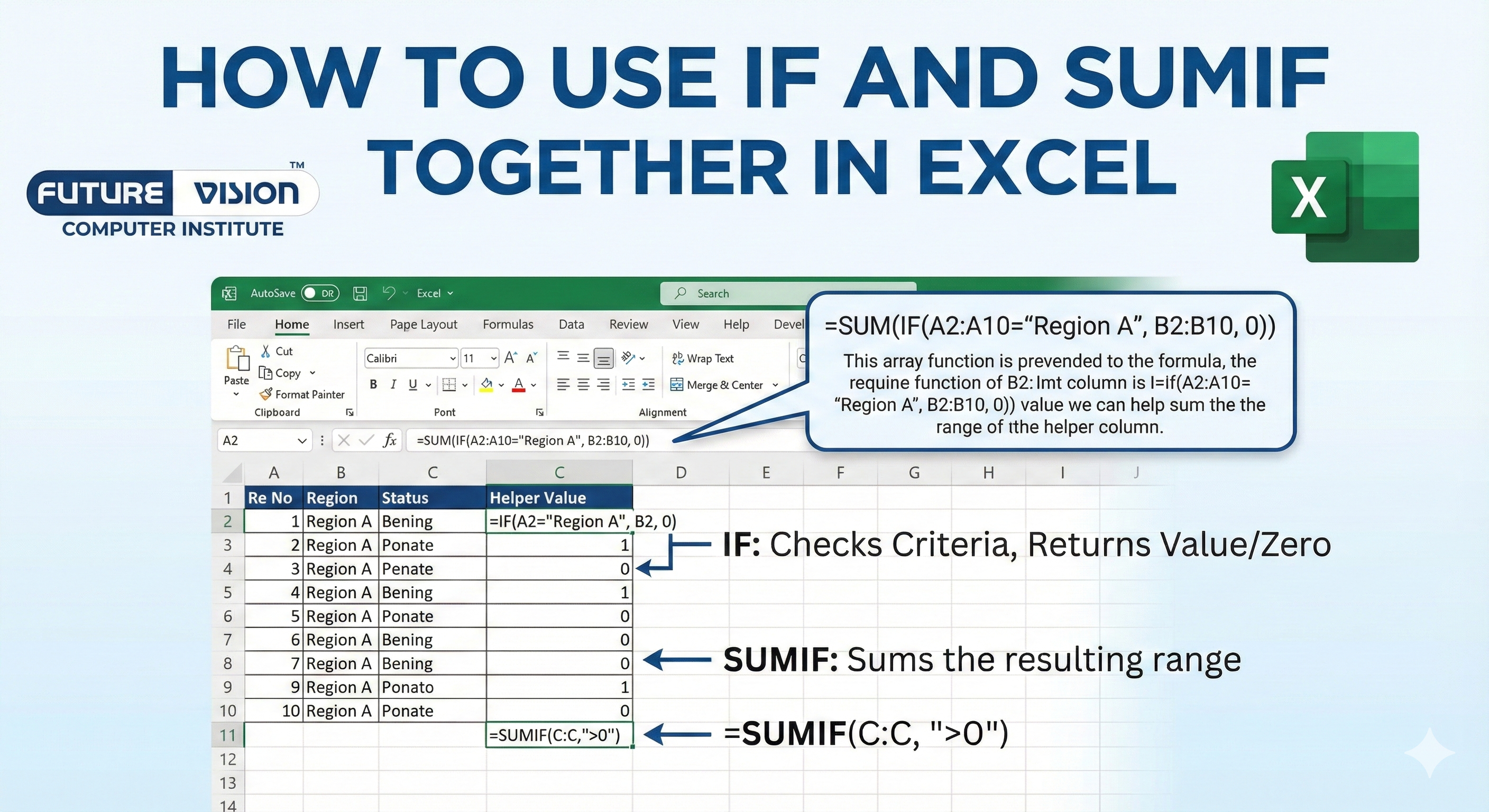
Working with Excel isn’t just about entering numbers—it’s about making sense of them. One of the most valuable skills you can learn is IF and SUMIF in Excel, which helps you add values based on specific conditions. By using IF in Excel along with SUMIF in Excel, you can easily track expenses by category or analyze sales by region. If you want to master Excel from basic to advanced, enrolling in an advanced Excel course institute near me can help you save hours of manual work and improve data analysis efficiency.
No need for complex formulas or confusing syntax. In this blog, we’ll walk through real examples and show you how to apply these functions step by step. You’ll see how easy it is to turn a messy sheet into clear, actionable insights.
🔧 What Are IF and SUMIF in Excel?
✅ IF Function
Tests a condition and returns a result based on whether it’s TRUE or FALSE.
Syntax:
=IF(condition, value_if_true, value_if_false)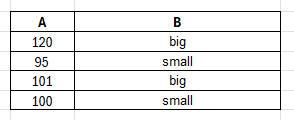
=IF(A1>100, "Big", "Small")✅ SUMIF Function
Sums values in a range based on a single condition.
Syntax:
=SUMIF(range, criteria, [sum_range])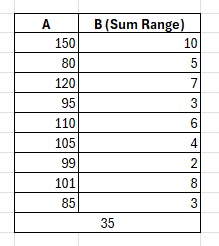
=SUMIF(A2:A10, ">100", B2:B10)🧠 Why Use IF and SUMIF Together?
Sometimes, SUMIF alone doesn’t cut it. You may need to evaluate a condition within a formula, avoid errors, or apply specific business logic like bonus payouts or budget caps. By combining IF with SUMIF, you gain flexibility and can handle more complex logic in one formula.
📊 Real-Life Example: Bonus Payout Based on Sales
🧩 Scenario: You manage a team of sales reps. You want to calculate bonuses with this rule: If a rep sells more than $10,000 total, they get their commission. If not, they get $0.
| Name (A) | Sales (B) | Commission (C) |
|---|---|---|
| John | $12,000 | $1,200 |
| Sarah | $9,500 | $950 |
| Alex | $13,500 | $1,350 |
| John | $5,000 | $500 |
✅ Step-by-Step Solution Using IF + SUMIF
Step 1: Use SUMIF to calculate total sales
=SUMIF(A2:A7, "John", B2:B7)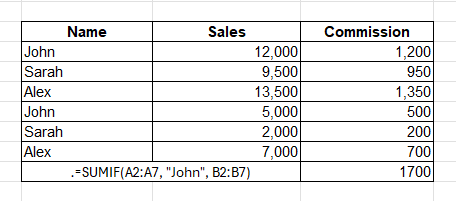
Step 2: Nest SUMIF inside IF to check sales threshold
=IF(SUMIF(A2:A7, "John", B2:B7) > 10000, SUMIF(A2:A7, "John", C2:C7), 0)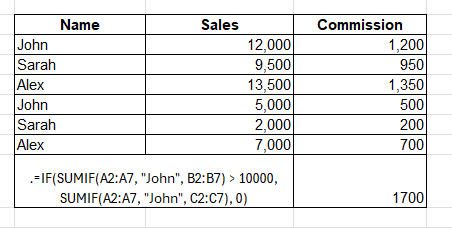
What this does:
- SUMIF(A2:A7, “John”, B2:B7) → checks John’s total sales.
- If that’s >10,000, then SUMIF(A2:A7, “John”, C2:C7) returns his total commission.
- Else, it returns 0.
💡 Pro Tip: Replace “John” with a cell reference (like E2) to make it dynamic and drag the formula.
🔄 Dynamic Version Using Cell References
Hardcoding names is slow. Instead, list your reps in column E (e.g., E2 is “John”) and use this drag-and-drop formula:
| Rep |
| John |
| Sarah |
| Alex |
=IF(SUMIF($A$2:$A$7, E2, $B$2:$B$7) > 10000, SUMIF($A$2:$A$7, E2, $C$2:$C$7), 0)
💡 Excel Tips to Enhance This Formula
- Make it case-insensitive:
Excel’s SUMIF isn’t case-sensitive, so no worries there. - Use named ranges:
Name your data ranges (e.g. sales_range, comm_range) for cleaner formulas.
Convert to Excel Table:
 Makes formula management easier. Use structured references like:

=IF(SUMIF(Table1[Name], E2, Table1[Sales]) > 10000, SUMIF(Table1[Name], E2, Table1[Commission]), 0)
🛠 Other Scenarios to Use IF + SUMIF
- Employee Overtime: If hours > 40, sum overtime pay.
- Inventory Control: If stock < minimum, sum cost of restocking.
- Marketing Campaigns: If leads > target, sum campaign budget.
🚫 Common Mistakes to Avoid
❌ Forgetting Anchors ($):
Always lock your ranges (e.g., $A$2:$A$10) when dragging formulas.
❌ Uneven Ranges:
Ensure your criteria_range and sum_range are the exact same size.
❌ Confusing SUMIF vs SUMIFS:
Remember, SUMIF is for 1 condition. If you need multiple criteria, use SUMIFS.
🧮 Bonus: What If I Need to SUMIF With Multiple Conditions?
You’d use SUMIFS instead, and you can still wrap that in IF.
Example:
=IF(SUMIFS(B2:B10, A2:A10, "John", D2:D10, ">10") > 10000, "Yes", "No")This checks multiple conditions (e.g., name and sales target).
📌 Final Thoughts
Using IF and SUMIF together opens up a world of dynamic, conditional calculations in Excel. Whether you’re managing sales commissions, budgets, or operational thresholds—this formula combo gives you the power to make data-driven decisions with precision.
The formula is simple once you break it down:
=IF(SUMIF(condition_range, condition, sum_range) > threshold, SUMIF(...), 0)Now you’re not just using Excel. You’re speaking Excel.
🧠 TL;DR (Too Long; Didn’t Read)
How to Use IF and SUMIF Together in Excel:
=IF(SUMIF(NameRange, "Name", SalesRange) > 10000, SUMIF(NameRange, "Name", CommRange), 0)Replace “Name” with a cell reference to make it dynamic.
Use case: Calculate commission only if total sales exceed a threshold.
If you found this guide useful, feel free to bookmark it, share it with your team, or plug it into your next Excel dashboard. Want to explore more Excel automation tips? Drop your request in the comments, and let’s geek out!
Let me know if you want me to format this post for RankMath 100/100 optimization too — with meta title, meta description, slug, OG image, schema markup, and focus keyword placements. 🔥
Find Our Locations
Visit any of our three convenient branches or contact us directly.
Pal Branch
Address: 115, Raj Victoria Complex, Pal Gam Circle, Pal.
Phone: +91-9825771641
Turn Negatives Into Productivity!
Master functions like ABS, MOD, and Pivot Tables with our specialized
courses in Advanced Excel and Data Science.

